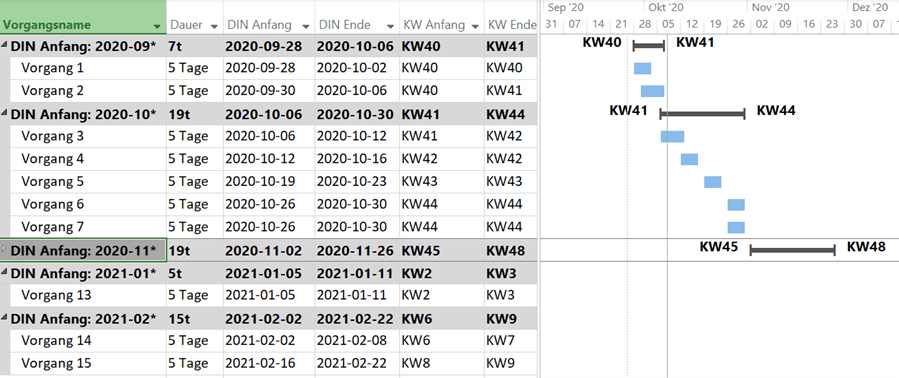
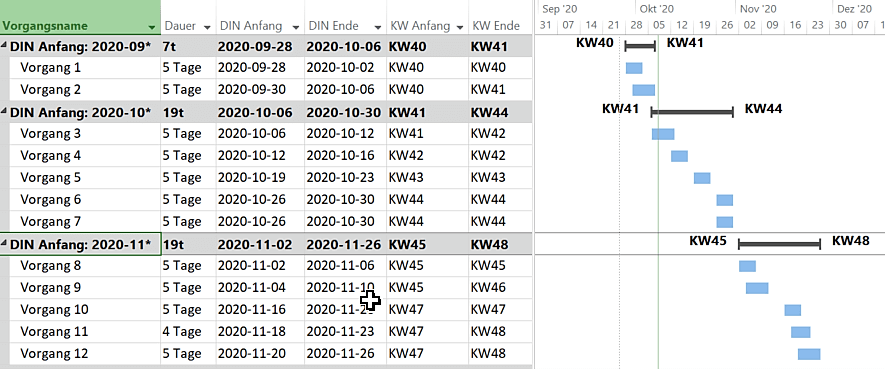
<img loading='lazy' style='display: none;' data-attachment-id-target='7203' src='https://www.theprojectgroup.com/blog/wp-content/uploads/2020/11/Bild1.png'><img loading='lazy' style='display: none;' data-attachment-id-target='0' src=''><img loading='lazy' style='display: none;' data-attachment-id-target='7204' src='https://www.theprojectgroup.com/blog/wp-content/uploads/2020/11/Bild2.png'><img loading='lazy' style='display: none;' data-attachment-id-target='7205' src='https://www.theprojectgroup.com/blog/wp-content/uploads/2020/11/Bild3.png'><img loading='lazy' style='display: none;' data-attachment-id-target='7207' src='https://www.theprojectgroup.com/blog/wp-content/uploads/2020/11/Bild5.png'><img loading='lazy' style='display: none;' data-attachment-id-target='7206' src='https://www.theprojectgroup.com/blog/wp-content/uploads/2020/11/Bild4.png'><img loading='lazy' style='display: none;' data-attachment-id-target='7209' src='https://www.theprojectgroup.com/blog/wp-content/uploads/2020/11/Bild7.png'><img loading='lazy' style='display: none;' data-attachment-id-target='7210' src='https://www.theprojectgroup.com/blog/wp-content/uploads/2020/11/Bild8.png'><img loading='lazy' style='display: none;' data-attachment-id-target='0' src=''><img loading='lazy' style='display: none;' data-attachment-id-target='7211' src='https://www.theprojectgroup.com/blog/wp-content/uploads/2020/11/Bild9.png'><img loading='lazy' style='display: none;' data-attachment-id-target='7212' src='https://www.theprojectgroup.com/blog/wp-content/uploads/2020/11/Bild10.png'><img loading='lazy' style='display: none;' data-attachment-id-target='7213' src='https://www.theprojectgroup.com/blog/wp-content/uploads/2020/11/Bild11.png'><img loading='lazy' style='display: none;' data-attachment-id-target='7214' src='https://www.theprojectgroup.com/blog/wp-content/uploads/2020/11/Bild12.png'><img loading='lazy' style='display: none;' data-attachment-id-target='7215' src='https://www.theprojectgroup.com/blog/wp-content/uploads/2020/11/Bild13.png'><img loading='lazy' style='display: none;' data-attachment-id-target='0' src=''><img loading='lazy' style='display: none;' data-attachment-id-target='10615' src='https://www.theprojectgroup.com/blog/wp-content/uploads/2020/11/Klaus_Oberboersch-bunt.jpg'><img loading='lazy' style='display: none;' data-attachment-id-target='0' src=''>{"id":7202,"date":"2023-11-30T15:37:14","date_gmt":"2023-11-30T14:37:14","guid":{"rendered":"https:\/\/www.theprojectgroup.com\/blog\/?p=7202"},"modified":"2024-07-03T15:41:46","modified_gmt":"2024-07-03T13:41:46","slug":"ms-project-datumsformat","status":"publish","type":"post","link":"https:\/\/www.theprojectgroup.com\/blog\/ms-project-datumsformat\/","title":{"rendered":"MS Project Datumsformat \u00e4ndern nach DIN \u2013 einheitliche Datumswerte und \u00fcbersichtliche Gruppierung"},"content":{"rendered":"<p>In jeder Organisation sind gute und richtige Zeitabsprachen das A und O. Allerdings ist es in der digitalen Welt zunehmend schwerer, diese Zeitangaben allgemein verst\u00e4ndlich zu gestalten. So haben Sie als internationales Unternehmen vielleicht Mitarbeitende oder Kunden aus verschiedenen Zeitzonen. Und dazu kommen jede Menge unterschiedliche Schreibweisen f\u00fcr die Zeitformatierung, je nach Kultur und Gewohnheiten.<\/p>\n<p>Wie geben Sie ein Datum also richtig und f\u00fcr alle verst\u00e4ndlich an? Die L\u00f6sung: ISO 8601. Microsoft Project bietet die M\u00f6glichkeit, das Datumsformat mittels benutzerdefinierter Felder anzupassen. In diesem Artikel erfahren Sie, wie Sie das <strong>MS Project Datumsformat \u00e4ndern<\/strong>. Folgende Kapitel warten auf Sie:<\/p>\n<ul>\n<li><a href=\"#Kapitel1\">Was ist die ISO 8601<\/a><\/li>\n<li><a href=\"#Kapitel2\">Definition der Datumswerte in Microsoft Project\u00a0<\/a><\/li>\n<li><a href=\"#Kapitel3\">Erstellen der Gruppierung nach Monaten<\/a><\/li>\n<li><a href=\"#Kapitel4\">Zusammenfassung \u2013 MS Project Datenformat \u00e4ndern<\/a><\/li>\n<\/ul>\n<p>Los geht&#8217;s zum Einstieg mit der Definition der ISO 8601.<\/p>\n<blockquote>\n<h2 id=\"Kapitel1\">Was ist die ISO 8601<\/h2>\n<p>Die ISO 8601 ist ein internationaler Standard der ISO, der Datumsformate und Zeitangaben beschreibt und Empfehlungen f\u00fcr den Gebrauch im internationalen Kontext ausspricht. Der Titel der Norm ist &#8222;Data elements and interchange formats &#8212; Information interchange &#8212; Representation of dates and times&#8220;, was \u00fcbersetzt im Deutschen &#8222;Datenelemente und Austauschformate; Informationsaustausch; Darstellung von Datum und Uhrzeit&#8220; bedeutet.<\/p><\/blockquote>\n<p>Datums- und Zeitangaben gem\u00e4\u00df ISO 8601:1988 sind auch in Deutschland, \u00d6sterreich und der Schweiz durch die \u00dcbernahme in EN 28 601:1992 g\u00fcltig. Au\u00dferdem ist die Norm auch in DIN 5008 eingeflossen.<\/p>\n<p>Die Norm empfiehlt eine einheitliche Schreibweise des Datums und der Uhrzeit: Ein Beispiel f\u00fcr das Datum ist dabei 2020-07-28, f\u00fcr die Uhrzeit 22:15:20. Ein Einsatz dieser Formate ist vor allem im Bereich der Softwareentwicklung und Dokumentation empfohlen, da hier das gr\u00f6\u00dfte Fehlerpotential durch l\u00e4nderspezifische Formate besteht.<\/p>\n<p>Diese Datumsdarstellung wird von Microsoft Project nicht direkt unterst\u00fctzt, aber die Umsetzung der Norm in Microsoft Project l\u00e4sst sich durch den <strong>Einsatz von benutzerdefinierten Feldern<\/strong> einfach realisieren und in Folge k\u00f6nnen die neuen Datumsformate f\u00fcr \u00fcbersichtlich gruppierte Darstellungen genutzt werden.<\/p>\n<div id=\"id69573cc4c352a\" class=\"iframecontainer iframecontainer--hidden\">\n            <div class=\"iframecontainer__head\" style=\"background: #D60B52!important;\">\n                <div class=\"iframecontainer__head__inner\" style=\"color:#ffffff;\" data-for=\"#id69573cc4c352a\">\n                    <p><strong>Download (PDF):<\/strong> 11 Schritte zum optimalen MS Project Projektplan (Tutorial)<\/p>\n                <\/div>\n                <div class=\"iframecontainer__head__icon\" data-for=\"#id69573cc4c352a\">\n                    <svg width=\"10px\" height=\"16px\" viewBox=\"1092 550 10 16\" version=\"1.1\" xmlns=\"http:\/\/www.w3.org\/2000\/svg\" xmlns:xlink=\"http:\/\/www.w3.org\/1999\/xlink\">\n                        <polygon class=\"iframecontainer__head__icon__pfeil\"  data-for=\"#id69573cc4c352a\" stroke=\"none\" fill=\"#ffffff\" fill-rule=\"evenodd\" points=\"1093.875 550 1101.875 558 1093.875 566 1092 564.125 1098.125 558 1092 551.875\"><\/polygon>\n                    <\/svg>\n                <\/div>\n            <\/div>\n            <div class=\"iframecontainer__iframe\">\n                <div class=\"iframecontainer__iframe__inner\">\n                    <p>Vermeiden Sie mit diesem Tutorial von Beginn an typische Stolperfallen, \u00fcber die Neulinge in MS Project sich gerne den Kopf zerbrechen, unsicher werden und Zeit verschwendet. Das wird Ihnen nicht passieren!<\/p>\n<p><span style=\"font-size: xx-small;\">* Pflichtfeld\u00a0 |\u00a0 <a href=\"https:\/\/www.theprojectgroup.com\/de\/datenschutz\/\" target=\"_blank\" rel=\"noopener\">Datenschutzhinweise<\/a><\/span><\/p>\n<div class=\"cookieconsent-optout-marketing\">Dieses Formular wird durch Ihre Cookie-Einstellung zu unserer Website blockiert. Bitte <a>klicken Sie hier<\/a> und w\u00e4hlen Sie mindestens die Marketing-Cookies aus. Dann wird dieses Formular angezeigt. Vielen Dank.<\/div>\n\n                \t<!-- DEUTSCH: Wichtig: nur den Code in data-download-asset \u00e4ndern - definiert Download -->\r\n<script type='text\/x-ccm-loader' data-ccm-loader-src=\"https:\/\/js-eu1.hsforms.net\/forms\/embed\/developer\/146642994.js\" defer><\/script>\r\n\r\n<div class=\"hs-form-html\"\r\n     data-download-asset=\"CU9D\"\r\n     data-region=\"eu1\"\r\n     data-form-id=\"32ae4d32-4e61-47ed-90d3-c7a25b28719d\"\r\n     data-portal-id=\"146642994\"><\/div>\r\n\r\n<script>\r\n(() => {\r\n  const FORM_ID = '32ae4d32-4e61-47ed-90d3-c7a25b28719d';\r\n  const FIELD   = '0-1\/download_asset';\r\n  const roots   = new Set();\r\n  const formsByRoot = new WeakMap();\r\n\r\n  const setViaApi = (root) => {\r\n    const code = root.dataset.downloadAsset || '';\r\n    const form = formsByRoot.get(root);\r\n    if (!code || !form) return;\r\n    form.setFieldValue(FIELD, code);\r\n  };\r\n\r\n  \/\/ 1) Wenn das Formular ready ist: Form-Instanz holen + Wert via API setzen\r\n  window.addEventListener('hs-form-event:on-ready', (event) => {\r\n    if (!window.HubSpotFormsV4) return;\r\n    const form = HubSpotFormsV4.getFormFromEvent(event);\r\n    if (!form || form.getFormId() !== FORM_ID) return;\r\n\r\n    const root = [...roots].find(r => r.contains(event.target));\r\n    if (!root) return;\r\n\r\n    formsByRoot.set(root, form);\r\n    setViaApi(root);\r\n  });\r\n\r\n  \/\/ 2) Kurz vor dem Absenden nochmal setzen (globaler Callback)\r\n  window.addEventListener('message', (event) => {\r\n    const d = event.data;\r\n    if (!d || d.type !== 'hsFormCallback' || d.eventName !== 'onFormSubmit') return;\r\n    if (d.id !== FORM_ID) return;\r\n\r\n    roots.forEach(setViaApi);\r\n  });\r\n\r\n  \/\/ Boot\r\n  document.addEventListener('DOMContentLoaded', () => {\r\n    document.querySelectorAll('.hs-form-html[data-download-asset][data-form-id=\"' + FORM_ID + '\"]')\r\n      .forEach(r => roots.add(r));\r\n  });\r\n})();\r\n<\/script>\n                    <style>\/* Kompaktere Darstellung f\u00fcr HubSpot Formulare *\/\n[data-hsfc-id=\"Renderer\"] .hsfc-Step .hsfc-Step__Content { padding: 0 20px 20px !important; }\n[data-hsfc-id=Renderer] .hsfc-TextField>*:not(:last-child) { margin-bottom:4px !important; }\n[data-hsfc-id=\"Renderer\"] .hsfc-Row { gap: 20px !important; margin-bottom: 12px !important; }\n[data-hsfc-id=\"Renderer\"] .hsfc-NavigationRow { margin-top: 6px !important; }\n[data-hsfc-id=\"Renderer\"] .hsfc-TextInput { padding: 8px !important; }<\/style>\n                <\/div>\n            <\/div>\n        <\/div><h2 id=\"Kapitel2\">Neues MS Project Datumsformat festlegen<\/h2>\n<h3>Schritt 1:<\/h3>\n<p>Legen Sie ein benutzerdefiniertes Feld unter \u201eText1\u201c an. Benennen Sie das Feld in \u201eDIN Anfang (Text1)\u201c um.<\/p>\n<figure id=\"attachment_7203\" aria-describedby=\"caption-attachment-7203\" style=\"width: 500px\" class=\"wp-caption alignnone\"><img data-attachment-id=\"7203\"loading=\"lazy\" decoding=\"async\" class=\"wp-image-7203\" src=\"https:\/\/www.theprojectgroup.com\/blog\/wp-content\/uploads\/2020\/11\/Bild1.png\" alt=\"MS Project Datumsformat\" width=\"500\" height=\"341\" srcset=\"https:\/\/www.theprojectgroup.com\/blog\/wp-content\/uploads\/2020\/11\/Bild1.png 724w, https:\/\/www.theprojectgroup.com\/blog\/wp-content\/uploads\/2020\/11\/Bild1-300x205.png 300w\" sizes=\"(max-width: 500px) 100vw, 500px\" \/><figcaption id=\"caption-attachment-7203\" class=\"wp-caption-text\">Neues benutzerdefiniertes Feld anlegen<\/figcaption><\/figure>\n\n    <p class=\"datamintsbanner\">\n        <a href=\"\" target=\"_blank\" class=\"datamintsbanner__link\" title=\"Motorworld Event (TPG Webinar)\" style=\"display: block;\">\n            <img data-attachment-id=\"0\"decoding=\"async\" src=\"\" class=\"datamintsbanner__image\" style=\"display: block; max-width: 100%\">\n        <\/a>\n    <\/p>\n    \n<h3>Schritt 2:<\/h3>\n<p>Im zweiten Schritt wird das DIN-Datenformat unter \u201eFormel\u201c wie folgt beschrieben: Format([Anfang];&#8220;YYYY-MM-DD&#8220;).<\/p>\n<p>Mit dieser \u201eFormel\u201c wird der Anfang eines Vorgangs jetzt im Format YYYY(Jahr)-MM(Monat)-DD(Tag) dargestellt (englische Bezeichnungen nur in der Formel).<\/p>\n<figure id=\"attachment_7204\" aria-describedby=\"caption-attachment-7204\" style=\"width: 500px\" class=\"wp-caption alignnone\"><img data-attachment-id=\"7204\"loading=\"lazy\" decoding=\"async\" class=\"wp-image-7204\" src=\"https:\/\/www.theprojectgroup.com\/blog\/wp-content\/uploads\/2020\/11\/Bild2.png\" alt=\"MS Project Datumsformat - Formel DIN-Datumformat\" width=\"500\" height=\"460\" srcset=\"https:\/\/www.theprojectgroup.com\/blog\/wp-content\/uploads\/2020\/11\/Bild2.png 726w, https:\/\/www.theprojectgroup.com\/blog\/wp-content\/uploads\/2020\/11\/Bild2-300x276.png 300w\" sizes=\"(max-width: 500px) 100vw, 500px\" \/><figcaption id=\"caption-attachment-7204\" class=\"wp-caption-text\">Eingeben der Formel f\u00fcr das DIN-Datumformat (Anfang)<\/figcaption><\/figure>\n<h3>Schritt 3:<\/h3>\n<p>Ein weiteres benutzerdefiniertes Feld unter \u201eText2\u201c benennen Sie in \u201eDIN Ende (Text2)\u201c um.<\/p>\n<figure id=\"attachment_7205\" aria-describedby=\"caption-attachment-7205\" style=\"width: 500px\" class=\"wp-caption alignnone\"><img data-attachment-id=\"7205\"loading=\"lazy\" decoding=\"async\" class=\"wp-image-7205\" src=\"https:\/\/www.theprojectgroup.com\/blog\/wp-content\/uploads\/2020\/11\/Bild3.png\" alt=\"Datumsformat in Microsoft Project \" width=\"500\" height=\"459\" srcset=\"https:\/\/www.theprojectgroup.com\/blog\/wp-content\/uploads\/2020\/11\/Bild3.png 724w, https:\/\/www.theprojectgroup.com\/blog\/wp-content\/uploads\/2020\/11\/Bild3-300x276.png 300w\" sizes=\"(max-width: 500px) 100vw, 500px\" \/><figcaption id=\"caption-attachment-7205\" class=\"wp-caption-text\">Eingeben der Formel f\u00fcr das DIN-Datumformat (Ende)<\/figcaption><\/figure>\n<h3>Schritt 4:<\/h3>\n<p>F\u00fcgen Sie mit der rechten Maustaste \u201eSpalte einf\u00fcgen\u201c die beiden benutzerdefinierten Felder (\u201eDIN Anfang (Text 1)\u201c und \u201eDIN Ende (Text 2)\u201c) an die gew\u00fcnschte Stelle in der Tabelle ein.<\/p>\n<figure id=\"attachment_7207\" aria-describedby=\"caption-attachment-7207\" style=\"width: 240px\" class=\"wp-caption alignnone\"><img data-attachment-id=\"7207\"loading=\"lazy\" decoding=\"async\" class=\"wp-image-7207 size-full\" src=\"https:\/\/www.theprojectgroup.com\/blog\/wp-content\/uploads\/2020\/11\/Bild5.png\" alt=\"Datumswerte in Microsoft Project - Felder einf\u00fcgen\" width=\"240\" height=\"389\" srcset=\"https:\/\/www.theprojectgroup.com\/blog\/wp-content\/uploads\/2020\/11\/Bild5.png 240w, https:\/\/www.theprojectgroup.com\/blog\/wp-content\/uploads\/2020\/11\/Bild5-185x300.png 185w\" sizes=\"(max-width: 240px) 100vw, 240px\" \/><figcaption id=\"caption-attachment-7207\" class=\"wp-caption-text\">Felder einf\u00fcgen<\/figcaption><\/figure>\n<h3>Schritt 5:<\/h3>\n<p>Die benutzerdefinierten Felder k\u00f6nnen Sie unter dem urspr\u00fcnglichen Namen (\u201eText1\u201c, \u201eText2\u201c) oder \u00fcber \u201eDIN Anfang\u201c bzw. \u201eDIN Ende\u201c aus der Liste ausw\u00e4hlen.<\/p>\n<figure id=\"attachment_7206\" aria-describedby=\"caption-attachment-7206\" style=\"width: 250px\" class=\"wp-caption alignnone\"><img data-attachment-id=\"7206\"loading=\"lazy\" decoding=\"async\" class=\"wp-image-7206\" src=\"https:\/\/www.theprojectgroup.com\/blog\/wp-content\/uploads\/2020\/11\/Bild4-300x138.png\" alt=\"Datumswerte in Microsoft Project \" width=\"250\" height=\"115\" srcset=\"https:\/\/www.theprojectgroup.com\/blog\/wp-content\/uploads\/2020\/11\/Bild4-300x138.png 300w, https:\/\/www.theprojectgroup.com\/blog\/wp-content\/uploads\/2020\/11\/Bild4-343x159.png 343w, https:\/\/www.theprojectgroup.com\/blog\/wp-content\/uploads\/2020\/11\/Bild4.png 345w\" sizes=\"(max-width: 250px) 100vw, 250px\" \/><figcaption id=\"caption-attachment-7206\" class=\"wp-caption-text\">Ausw\u00e4hlen der Felder aus der Liste<\/figcaption><\/figure>\n<h3>Schritt 6:<\/h3>\n<p>Jetzt wird das Datumsformat in MS Project korrekt nach der ISO 8601 dargestellt.<\/p>\n<p><strong>Tipp:<\/strong> F\u00fcr eine bessere \u00dcbersicht k\u00f6nnen Sie die \u201eStandard\u201c-Datumswerte (Anfang, Ende) ausblenden (rechte Maustaste auf den Spaltenkopf von Ende und Anfang, dann Spalte ausblenden).<\/p>\n<figure id=\"attachment_7209\" aria-describedby=\"caption-attachment-7209\" style=\"width: 400px\" class=\"wp-caption alignnone\"><img data-attachment-id=\"7209\"loading=\"lazy\" decoding=\"async\" class=\"wp-image-7209\" src=\"https:\/\/www.theprojectgroup.com\/blog\/wp-content\/uploads\/2020\/11\/Bild7-300x210.png\" alt=\"Datumswerte in Microsoft Project \" width=\"400\" height=\"280\" srcset=\"https:\/\/www.theprojectgroup.com\/blog\/wp-content\/uploads\/2020\/11\/Bild7-300x210.png 300w, https:\/\/www.theprojectgroup.com\/blog\/wp-content\/uploads\/2020\/11\/Bild7-768x537.png 768w, https:\/\/www.theprojectgroup.com\/blog\/wp-content\/uploads\/2020\/11\/Bild7.png 779w\" sizes=\"(max-width: 400px) 100vw, 400px\" \/><figcaption id=\"caption-attachment-7209\" class=\"wp-caption-text\">\u00dcbersicht der Standard- und DIN-Datumswerte<\/figcaption><\/figure>\n<h3>Schritt 7:<\/h3>\n<p>Durch die Darstellung der Datumswerte gem\u00e4\u00df der ISO Norm l\u00e4sst sich jetzt eine sehr interessante Gruppierung erstellen, die eine Darstellung der Vorg\u00e4nge nach Beginn eines Monats zeigt. Die L\u00f6sung sieht dann so aus und wird anschlie\u00dfend beschrieben. Durch die neue Gruppierung k\u00f6nnen Sie Monate kompakt als Sammelvorgang wie \u201ealle Vorg\u00e4nge, die im November anfangen (DIN Anfang: 2020-11*)\u201c oder detailliert wie \u201e<u>alle<\/u> Vorg\u00e4nge mit DIN Anfang: 2020-10*\u201c anzeigen und drucken.<\/p>\n<figure id=\"attachment_7210\" aria-describedby=\"caption-attachment-7210\" style=\"width: 700px\" class=\"wp-caption alignnone\"><a href=\"https:\/\/www.theprojectgroup.com\/blog\/wp-content\/uploads\/2020\/11\/Bild8.png\"><img data-attachment-id=\"7210\"loading=\"lazy\" decoding=\"async\" class=\"wp-image-7210\" src=\"https:\/\/www.theprojectgroup.com\/blog\/wp-content\/uploads\/2020\/11\/Bild8.png\" alt=\"Microsoft Project Datumsformat - Monatsgruppierung\" width=\"700\" height=\"294\" srcset=\"https:\/\/www.theprojectgroup.com\/blog\/wp-content\/uploads\/2020\/11\/Bild8.png 899w, https:\/\/www.theprojectgroup.com\/blog\/wp-content\/uploads\/2020\/11\/Bild8-300x126.png 300w, https:\/\/www.theprojectgroup.com\/blog\/wp-content\/uploads\/2020\/11\/Bild8-768x323.png 768w\" sizes=\"(max-width: 700px) 100vw, 700px\" \/><\/a><figcaption id=\"caption-attachment-7210\" class=\"wp-caption-text\">Gruppierung der Vorg\u00e4nge nach Monat<\/figcaption><\/figure>\n\n    <p class=\"datamintsbanner\">\n        <a href=\"https:\/\/bit.ly\/3OkEHIx\" target=\"_blank\" class=\"datamintsbanner__link\" title=\"Meilensteintrendanalyse MTA Kostenlos Download MicrosoftProject MSProject FreeMTA Projektmanagement\" style=\"display: block;\">\n            <img data-attachment-id=\"0\"decoding=\"async\" src=\"https:\/\/www.theprojectgroup.com\/blog\/wp-content\/uploads\/2022\/07\/TPG_Header_1400_MTA-Client_de.jpg\" class=\"datamintsbanner__image\" style=\"display: block; max-width: 100%\">\n        <\/a>\n    <\/p>\n    \n<h2 id=\"Kapitel3\">MS Project Datumsformat Gruppierung nach Monaten<\/h2>\n<p>Um diese Gruppierung mittels des neu angelegten MS Project Datumsformats umzusetzen, gehen Sie wie folgt vor:<\/p>\n<h3>Schritt 1:<\/h3>\n<p>Rufen Sie \u00fcber den Men\u00fcpunkt \u201eAnsicht\u201c die Funktion \u201eGruppieren nach\u201c auf. W\u00e4hlen Sie unten die Funktion \u201eNeue Gruppe nach\u201c aus.<\/p>\n<figure id=\"attachment_7211\" aria-describedby=\"caption-attachment-7211\" style=\"width: 400px\" class=\"wp-caption alignnone\"><img data-attachment-id=\"7211\"loading=\"lazy\" decoding=\"async\" class=\"wp-image-7211\" src=\"https:\/\/www.theprojectgroup.com\/blog\/wp-content\/uploads\/2020\/11\/Bild9-300x291.png\" alt=\"Datumswerte in Microsoft Project - Gruppierung\" width=\"400\" height=\"388\" srcset=\"https:\/\/www.theprojectgroup.com\/blog\/wp-content\/uploads\/2020\/11\/Bild9-300x291.png 300w, https:\/\/www.theprojectgroup.com\/blog\/wp-content\/uploads\/2020\/11\/Bild9-768x745.png 768w, https:\/\/www.theprojectgroup.com\/blog\/wp-content\/uploads\/2020\/11\/Bild9.png 937w\" sizes=\"(max-width: 400px) 100vw, 400px\" \/><figcaption id=\"caption-attachment-7211\" class=\"wp-caption-text\">Ansicht \/ Gruppieren nach \/ Neue Gruppe<\/figcaption><\/figure>\n<h3>Schritt 2:<\/h3>\n<p>Geben Sie nun der neuen Gruppe in dem sich \u00f6ffnenden Fenster einen \u201esprechenden\u201c Namen. Standardm\u00e4\u00dfig sollte \u201eIm Men\u00fc anzeigen\u201c angeklickt sein, so dass die neue Gruppe direkt im Auswahlfenster \u201eGruppieren nach\u201c erscheint.<\/p>\n<h3>Schritt 3:<\/h3>\n<p>\u00d6ffnen Sie danach in der Zeile \u201eGruppieren nach\u201c in \u201eFeldname\u201c das Dropdown-Men\u00fc. W\u00e4hlen Sie das benutzerdefinierte Feld \u201eText1 (DIN Anfang)\u201c aus.<\/p>\n<p><strong>Tipp:<\/strong> Passen Sie ggf. noch die Schriftart und die Hintergrundfarbe an.<\/p>\n<figure id=\"attachment_7212\" aria-describedby=\"caption-attachment-7212\" style=\"width: 581px\" class=\"wp-caption alignnone\"><img data-attachment-id=\"7212\"loading=\"lazy\" decoding=\"async\" class=\"wp-image-7212 size-full\" src=\"https:\/\/www.theprojectgroup.com\/blog\/wp-content\/uploads\/2020\/11\/Bild10.png\" alt=\"Datumsformat in Microsoft Project gruppieren\" width=\"581\" height=\"402\" srcset=\"https:\/\/www.theprojectgroup.com\/blog\/wp-content\/uploads\/2020\/11\/Bild10.png 581w, https:\/\/www.theprojectgroup.com\/blog\/wp-content\/uploads\/2020\/11\/Bild10-300x208.png 300w\" sizes=\"(max-width: 581px) 100vw, 581px\" \/><figcaption id=\"caption-attachment-7212\" class=\"wp-caption-text\">Auswahl Anfangsdatum nach DIN f\u00fcr die Gruppierung<\/figcaption><\/figure>\n<h3>Schritt 4:<\/h3>\n<p>Die eigentliche Gruppierung nach \u201eAnfang im Monat xx\u201c wird dadurch erreicht, dass das Gruppenintervall definiert wird. W\u00e4hlen Sie hier bei \u201eGruppieren nach\u201c \u201ePr\u00e4fixzeichen\u201c aus und stellen Sie das Gruppenintervall auf 7. Damit wird nach dem 7. Zeichen gruppiert, nach ISO Datumsformat ist das der Monat.<\/p>\n<figure id=\"attachment_7213\" aria-describedby=\"caption-attachment-7213\" style=\"width: 517px\" class=\"wp-caption alignnone\"><img data-attachment-id=\"7213\"loading=\"lazy\" decoding=\"async\" class=\"wp-image-7213 size-full\" src=\"https:\/\/www.theprojectgroup.com\/blog\/wp-content\/uploads\/2020\/11\/Bild11.png\" alt=\"Datumswerte in Microsoft Project\" width=\"517\" height=\"359\" srcset=\"https:\/\/www.theprojectgroup.com\/blog\/wp-content\/uploads\/2020\/11\/Bild11.png 517w, https:\/\/www.theprojectgroup.com\/blog\/wp-content\/uploads\/2020\/11\/Bild11-300x208.png 300w\" sizes=\"(max-width: 517px) 100vw, 517px\" \/><figcaption id=\"caption-attachment-7213\" class=\"wp-caption-text\">Gruppierung nach Monatszeichen<\/figcaption><\/figure>\n<h3>Schritt 5:<\/h3>\n<p>Im n\u00e4chsten Schritt k\u00f6nnen Sie die Balkenbeschriftungen der Gruppenzeilen (Format \/ Balkenarten \/ Gruppenkopf) mit dem Anfang und Beginn in Form von Kalenderwochen beschriften.<\/p>\n<figure id=\"attachment_7214\" aria-describedby=\"caption-attachment-7214\" style=\"width: 700px\" class=\"wp-caption alignnone\"><a href=\"https:\/\/www.theprojectgroup.com\/blog\/wp-content\/uploads\/2020\/11\/Bild12.png\"><img data-attachment-id=\"7214\"loading=\"lazy\" decoding=\"async\" class=\"wp-image-7214\" src=\"https:\/\/www.theprojectgroup.com\/blog\/wp-content\/uploads\/2020\/11\/Bild12.png\" alt=\"Datumswerte in Microsoft Project - Kalenderwochen\" width=\"700\" height=\"292\" srcset=\"https:\/\/www.theprojectgroup.com\/blog\/wp-content\/uploads\/2020\/11\/Bild12.png 885w, https:\/\/www.theprojectgroup.com\/blog\/wp-content\/uploads\/2020\/11\/Bild12-300x125.png 300w, https:\/\/www.theprojectgroup.com\/blog\/wp-content\/uploads\/2020\/11\/Bild12-768x320.png 768w\" sizes=\"(max-width: 700px) 100vw, 700px\" \/><\/a><figcaption id=\"caption-attachment-7214\" class=\"wp-caption-text\">Eingabe Kalenderwochen f\u00fcr die Sammelvorg\u00e4nge<\/figcaption><\/figure>\n<h3>Schritt 6:<\/h3>\n<p>Damit das ISO Datum auch in den Gruppenzeilen angezeigt wird, muss in beiden benutzerdefinierten Feldern \u201eDIN Anfang\u201c und \u201eDIN Ende\u201c Formel f\u00fcr die Berechnung von Sammelvorgangs- und Gruppenkopfzeilen ausgew\u00e4hlt sein.<\/p>\n<figure id=\"attachment_7215\" aria-describedby=\"caption-attachment-7215\" style=\"width: 376px\" class=\"wp-caption alignnone\"><img data-attachment-id=\"7215\"loading=\"lazy\" decoding=\"async\" class=\"wp-image-7215 size-full\" src=\"https:\/\/www.theprojectgroup.com\/blog\/wp-content\/uploads\/2020\/11\/Bild13.png\" alt=\"Datumswerte in Microsoft Project\" width=\"376\" height=\"308\" srcset=\"https:\/\/www.theprojectgroup.com\/blog\/wp-content\/uploads\/2020\/11\/Bild13.png 376w, https:\/\/www.theprojectgroup.com\/blog\/wp-content\/uploads\/2020\/11\/Bild13-300x246.png 300w, https:\/\/www.theprojectgroup.com\/blog\/wp-content\/uploads\/2020\/11\/Bild13-168x137.png 168w\" sizes=\"(max-width: 376px) 100vw, 376px\" \/><figcaption id=\"caption-attachment-7215\" class=\"wp-caption-text\">Formel f\u00fcr Sammelvorgangs- und Gruppenkopfzeilen ausw\u00e4hlen<\/figcaption><\/figure>\n\n    <p class=\"datamintsbanner\">\n        <a href=\"https:\/\/bit.ly\/3IWzlQw\" target=\"_blank\" class=\"datamintsbanner__link\" title=\"TPG ProjectPowerPack Microsoft 365 Projektmanagement\" style=\"display: block;\">\n            <img data-attachment-id=\"0\"decoding=\"async\" src=\"https:\/\/www.theprojectgroup.com\/blog\/wp-content\/uploads\/2025\/04\/PPP_Blog_Banner_3_1300px-AS_tiny.jpg\" class=\"datamintsbanner__image\" style=\"display: block; max-width: 100%\">\n        <\/a>\n    <\/p>\n    \n<h2>Zusammenfassung: MS Project Datumsformat \u00e4ndern<\/h2>\n<p>In diesem Artikel haben Sie gelernt, wie Sie<\/p>\n<ul>\n<li><a href=\"#Kapitel2\">In Microsoft Project ein Datumsformat gem. ISO 8601 definieren <\/a><\/li>\n<li><a href=\"#Kapitel3\">Daraus eine \u00fcbersichtliche Gruppierung der Vorg\u00e4nge nach Monaten erstellen<\/a><\/li>\n<\/ul>\n<p>Mit benutzerdefinierten Feldern und einer einfachen Formel l\u00e4sst sich das internationale Datumsformat in Microsoft Project realisieren und bietet dann eine Gruppierungsm\u00f6glichkeit nach Monaten, die eine \u00fcbersichtliche Darstellung der in Zukunft beginnenden Vorg\u00e4nge darstellt. Somit k\u00f6nnen gro\u00dfe Projektpl\u00e4ne in Zeitphasen f\u00fcr alle Projektbeteiligten bereitgestellt werden.<\/p>\n<blockquote><p><strong>Unsere Tipps zum Schluss: <\/strong>Lernen Sie das individuell anpassbare \u201cThe PPM Paradise\u201d kennen \u2013 <span dir=\"ltr\" role=\"presentation\">die optimale Umgebung f\u00fcr ein unternehmensweites Projekt-, Programm-, Portfolio- und Ressourcenmanagement (PPM). Laden Sie sich jetzt <\/span><a href=\"https:\/\/www.theprojectgroup.com\/data\/Downloads_eBooks\/TPG_PPM_Paradise_eBook_-_TPG_TheProjectGroup.pdf\" target=\"_blank\" rel=\"noopener\"><span dir=\"ltr\" role=\"presentation\">hier das eBook dazu herunter<\/span><\/a><span dir=\"ltr\" role=\"presentation\"> (nur klicken, ohne Formular).<\/span><\/p>\n<p><span dir=\"ltr\" role=\"presentation\">Und abonnieren Sie unseren <\/span><a href=\"https:\/\/www.theprojectgroup.com\/de\/projektmanagement-newsletter\" target=\"_blank\" rel=\"noopener\"><span dir=\"ltr\" role=\"presentation\">Projektmanagement Newsletter<\/span><\/a> mit mehr MS Project Tipps, praxisstarken Artikeln, Webinaren, Podcasts, eBooks etc. f\u00fcr einen h\u00f6heren Reifengrad-Level Ihres Projektmanagements!<\/p><\/blockquote>\n<p>Sie wollen das Gelernte vertiefen, weitere wichtige Tipps erfahren und Ihre Fragen stellen? Dann sind Sie genau richtig beim TPG <a href=\"https:\/\/www.theprojectgroup.com\/de\/ms-project-seminar-einsteiger-schulung\" target=\"_blank\" rel=\"noopener\">Microsoft Project Seminar (Grundlagen)<\/a>.<\/p>\n<p><strong>Haben Sie noch Fragen? Dann hinterlassen Sie einen Kommentar, auf den wir in K\u00fcrze antworten werden \u2013 garantiert.<\/strong><\/p>\n<span style='display:none;'>FALSE<\/span><blockquote><p><strong><a href=\"https:\/\/www.theprojectgroup.com\/blog\/wp-content\/uploads\/2020\/11\/Klaus_Oberboersch-bunt.jpg\"><img data-attachment-id=\"10615\"loading=\"lazy\" decoding=\"async\" class=\"wp-image-10615 size-thumbnail alignleft\" src=\"https:\/\/www.theprojectgroup.com\/blog\/wp-content\/uploads\/2020\/11\/Klaus_Oberboersch-bunt-150x150.jpg\" alt=\"Klaus Oberb\u00f6rsch\" width=\"150\" height=\"150\" srcset=\"https:\/\/www.theprojectgroup.com\/blog\/wp-content\/uploads\/2020\/11\/Klaus_Oberboersch-bunt-150x150.jpg 150w, https:\/\/www.theprojectgroup.com\/blog\/wp-content\/uploads\/2020\/11\/Klaus_Oberboersch-bunt-300x300.jpg 300w, https:\/\/www.theprojectgroup.com\/blog\/wp-content\/uploads\/2020\/11\/Klaus_Oberboersch-bunt.jpg 354w\" sizes=\"(max-width: 150px) 100vw, 150px\" \/><\/a>\u00dcber den externen Autor:<br \/>\nKlaus Oberb\u00f6rsch<\/strong><\/p>\n<p>Klaus Oberb\u00f6rsch ist seit 47 Jahren im Projektumfeld aktiv und zertifiziert nach GPM, Prince2 und CPPM. Sein Kerngebiet umfasst u.a. Projektmanagement sowie Einf\u00fchrung und Anpassungen von Microsoft Project und Softwaretesten nach ISTQB Standard.\u00a0Herr Oberb\u00f6rsch ist Buchautor von Handb\u00fcchern f\u00fcr Microsoft Project und Softwaretests nach ISTQB Standard. Seit \u00fcber 10 Jahren ist er zudem akkreditierter ISTQB Trainer f\u00fcr die Zertifizierungen im Bereich Certified Tester und Testmanager.<\/p>\n<p style=\"padding-left: 300px; text-align: left;\">Mehr \u00fcber Klaus Oberb\u00f6rsch auf <a href=\"https:\/\/www.linkedin.com\/in\/klaus-oberb%C3%B6rsch-033827141\/detail\/recent-activity\/posts\/\" target=\"_blank\" rel=\"noopener\">LinkedIn<\/a>\u00a0oder\u00a0<a href=\"https:\/\/www.xing.com\/profile\/Klaus_Oberboersch\/cv\" target=\"_blank\" rel=\"noopener\">Xing<\/a><span style=\"font-size: 14px; background-color: #ffffff;\">\u00a0<\/span><\/p>\n<\/blockquote>\n\n    <p class=\"datamintsbanner\">\n        <a href=\"https:\/\/bit.ly\/3udKM2C\" target=\"_blank\" class=\"datamintsbanner__link\" title=\"Job TPG Bewerbung Wirsuchendich TPG TheProjectGroup Consultant Microsoft PPM Jobs\" style=\"display: block;\">\n            <img data-attachment-id=\"0\"decoding=\"async\" src=\"https:\/\/www.theprojectgroup.com\/blog\/wp-content\/uploads\/2022\/10\/Jobs-3.jpg\" class=\"datamintsbanner__image\" style=\"display: block; max-width: 100%\">\n        <\/a>\n    <\/p>\n    \n","protected":false},"excerpt":{"rendered":"<p>In jeder Organisation sind gute und richtige Zeitabsprachen das A und O. Allerdings ist es in der digitalen Welt zunehmend schwerer, diese Zeitangaben allgemein verst\u00e4ndlich zu gestalten. So haben Sie als internationales Unternehmen vielleicht Mitarbeitende oder Kunden aus verschiedenen Zeitzonen. Und dazu kommen jede Menge unterschiedliche Schreibweisen f\u00fcr die Zeitformatierung, je nach Kultur und Gewohnheiten.<\/p>\n<div class=\"read-more\"><a href=\"https:\/\/www.theprojectgroup.com\/blog\/ms-project-datumsformat\/\" title=\"Weiterlesen\">Weiterlesen<\/a><\/div>\n","protected":false},"author":19,"featured_media":9177,"comment_status":"open","ping_status":"open","sticky":false,"template":"","format":"standard","meta":{"footnotes":""},"categories":[24],"tags":[],"_links":{"self":[{"href":"https:\/\/www.theprojectgroup.com\/blog\/wp-json\/wp\/v2\/posts\/7202"}],"collection":[{"href":"https:\/\/www.theprojectgroup.com\/blog\/wp-json\/wp\/v2\/posts"}],"about":[{"href":"https:\/\/www.theprojectgroup.com\/blog\/wp-json\/wp\/v2\/types\/post"}],"author":[{"embeddable":true,"href":"https:\/\/www.theprojectgroup.com\/blog\/wp-json\/wp\/v2\/users\/19"}],"replies":[{"embeddable":true,"href":"https:\/\/www.theprojectgroup.com\/blog\/wp-json\/wp\/v2\/comments?post=7202"}],"version-history":[{"count":29,"href":"https:\/\/www.theprojectgroup.com\/blog\/wp-json\/wp\/v2\/posts\/7202\/revisions"}],"predecessor-version":[{"id":12496,"href":"https:\/\/www.theprojectgroup.com\/blog\/wp-json\/wp\/v2\/posts\/7202\/revisions\/12496"}],"wp:featuredmedia":[{"embeddable":true,"href":"https:\/\/www.theprojectgroup.com\/blog\/wp-json\/wp\/v2\/media\/9177"}],"wp:attachment":[{"href":"https:\/\/www.theprojectgroup.com\/blog\/wp-json\/wp\/v2\/media?parent=7202"}],"wp:term":[{"taxonomy":"category","embeddable":true,"href":"https:\/\/www.theprojectgroup.com\/blog\/wp-json\/wp\/v2\/categories?post=7202"},{"taxonomy":"post_tag","embeddable":true,"href":"https:\/\/www.theprojectgroup.com\/blog\/wp-json\/wp\/v2\/tags?post=7202"}],"curies":[{"name":"wp","href":"https:\/\/api.w.org\/{rel}","templated":true}]}}