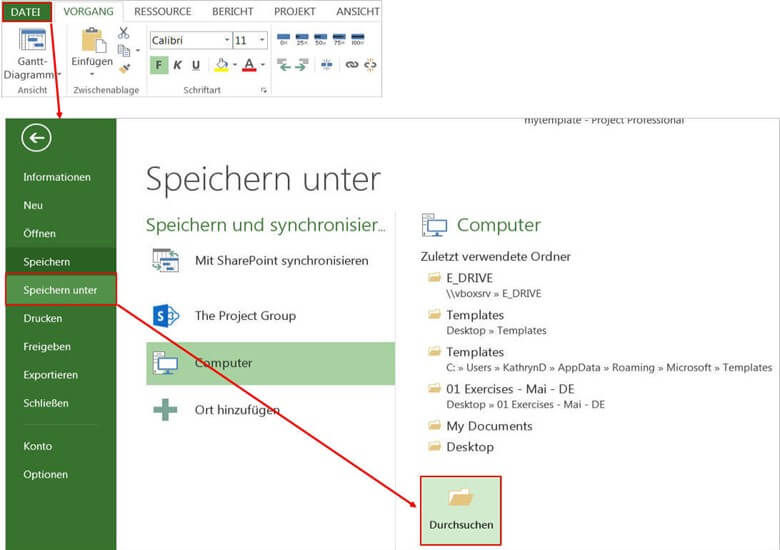
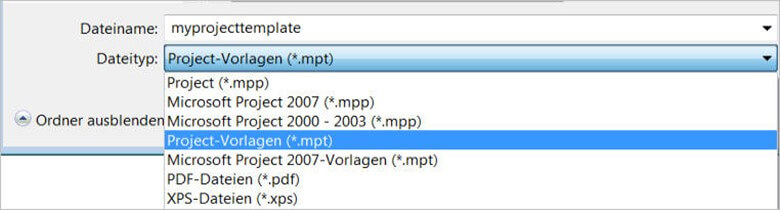
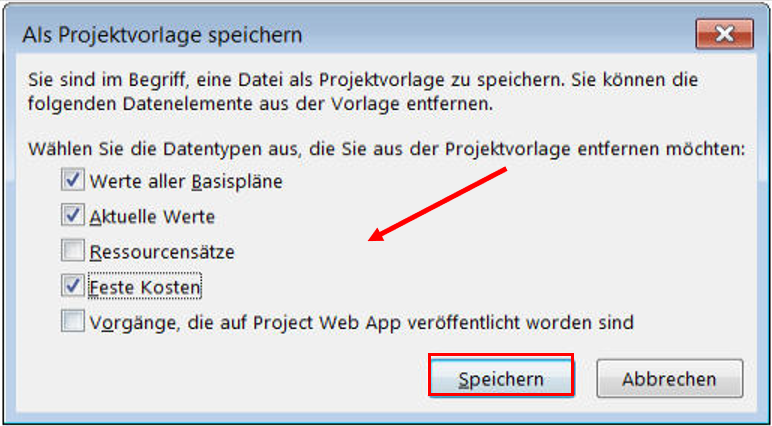
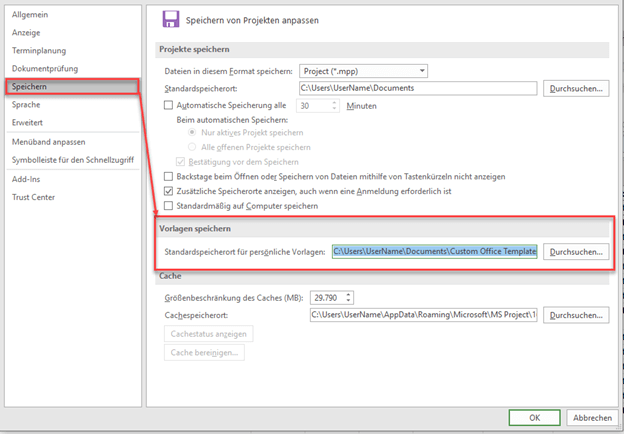
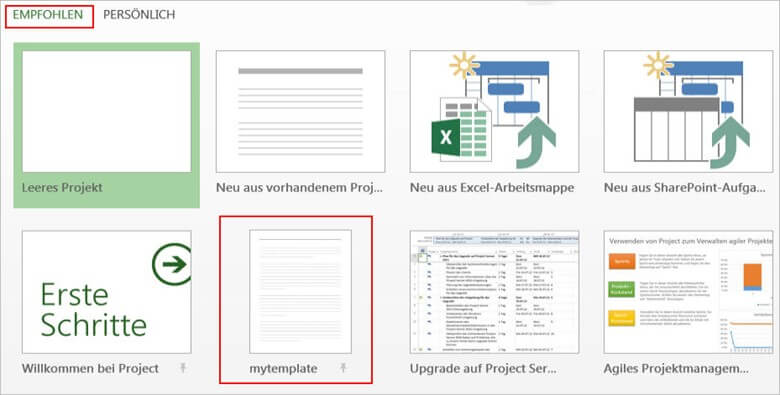
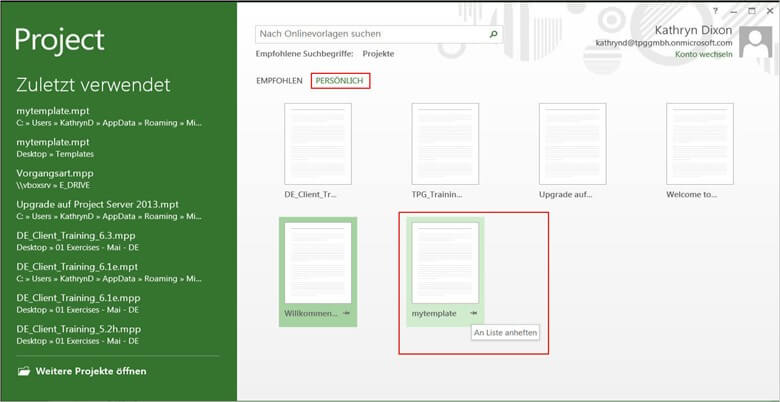
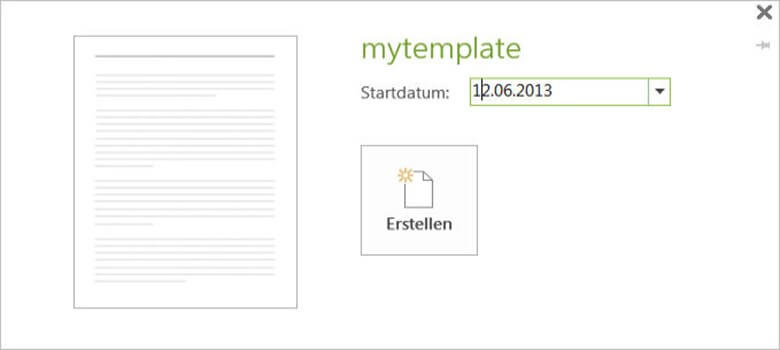

<img loading='lazy' style='display: none;' data-attachment-id-target='0' src=''><img loading='lazy' style='display: none;' data-attachment-id-target='7401' src='https://www.theprojectgroup.com/blog/wp-content/uploads/2021/01/Bild1.jpg'><img loading='lazy' style='display: none;' data-attachment-id-target='7402' src='https://www.theprojectgroup.com/blog/wp-content/uploads/2021/01/Bild2.jpg'><img loading='lazy' style='display: none;' data-attachment-id-target='7410' src='https://www.theprojectgroup.com/blog/wp-content/uploads/2021/01/Bild3.png'><img loading='lazy' style='display: none;' data-attachment-id-target='7404' src='https://www.theprojectgroup.com/blog/wp-content/uploads/2021/01/Bild4.png'><img loading='lazy' style='display: none;' data-attachment-id-target='7406' src='https://www.theprojectgroup.com/blog/wp-content/uploads/2021/01/Bild6.jpg'><img loading='lazy' style='display: none;' data-attachment-id-target='7405' src='https://www.theprojectgroup.com/blog/wp-content/uploads/2021/01/Bild5.jpg'><img loading='lazy' style='display: none;' data-attachment-id-target='7407' src='https://www.theprojectgroup.com/blog/wp-content/uploads/2021/01/Bild7.jpg'><img loading='lazy' style='display: none;' data-attachment-id-target='0' src=''><img loading='lazy' style='display: none;' data-attachment-id-target='0' src=''><img loading='lazy' style='display: none;' data-attachment-id-target='6145' src='https://www.theprojectgroup.com/blog/wp-content/uploads/2020/03/Marta_Kostek-Drosihn.jpg'><img loading='lazy' style='display: none;' data-attachment-id-target='6147' src='https://www.theprojectgroup.com/blog/wp-content/uploads/2020/03/Kathryn_Dixon_300x300px.jpg'><img loading='lazy' style='display: none;' data-attachment-id-target='0' src=''>{"id":3096,"date":"2023-11-24T18:00:05","date_gmt":"2023-11-24T17:00:05","guid":{"rendered":"https:\/\/www.theprojectgroup.com\/blog\/?p=3096"},"modified":"2024-07-03T15:43:27","modified_gmt":"2024-07-03T13:43:27","slug":"ms-project-vorlagen-erstellen","status":"publish","type":"post","link":"https:\/\/www.theprojectgroup.com\/blog\/ms-project-vorlagen-erstellen\/","title":{"rendered":"Microsoft Project Vorlagen erstellen \u2013 so sparen Sie Zeit und standardisieren Ihr Vorgehen"},"content":{"rendered":"<p>Sie haben Projekte mit \u00e4hnlichen Abl\u00e4ufen sowie Strukturen? Und m\u00f6chten bei der Erstellung neuer Projektpl\u00e4ne Zeit sparen oder die Pl\u00e4ne der bereits durchgef\u00fchrten Projekte als Vorlagen nutzen? Das k\u00f6nnen Sie sehr einfach umsetzen, indem Sie in <strong>MS Project Vorlagen erstellen<\/strong>. In diesem Artikel erfahren Sie, wie Sie:<\/p>\n<ul>\n<li><a href=\"#Kapitel1\">1) eine Vorlage aus einem vorhandenen Projekt erstellen<\/a><\/li>\n<li><a href=\"#Kapitel2\">2) den Speicherort f\u00fcr pers\u00f6nliche MS Project Vorlagen definieren<\/a><\/li>\n<li><a href=\"#Kapitel3\">3) einen neuen Projektplan aus Ihrer Vorlage erstellen<\/a><\/li>\n<li><a href=\"#Kapitel4\">Zusammenfassung: MS Project Vorlagen erstellen<\/a><\/li>\n<\/ul>\n<p>Los geht\u2019s!<\/p>\n\n    <p class=\"datamintsbanner\">\n        <a href=\"\" target=\"_blank\" class=\"datamintsbanner__link\" title=\"Motorworld Event (TPG Webinar)\" style=\"display: block;\">\n            <img data-attachment-id=\"0\"decoding=\"async\" src=\"\" class=\"datamintsbanner__image\" style=\"display: block; max-width: 100%\">\n        <\/a>\n    <\/p>\n    \n<h2 id=\"Kapitel1\">1) MS Project Vorlage erstellen aus einem vorhandenen Projekt<\/h2>\n<p>Sie haben eine komplexe Projektstruktur mit vielen verkn\u00fcpften Vorg\u00e4ngen sowie einen umfangreichen Ressourcenpool erstellt. Jetzt m\u00f6chten Sie dieses Projekt als Vorlage f\u00fcr k\u00fcnftige Projekte benutzen. Gehen Sie wie folgt vor:<\/p>\n<ol>\n<li style=\"list-style-type: none;\">\n<ol>\n<li>\u00d6ffnen Sie das vorhandene Projekt, das Sie als Vorlage nutzen m\u00f6chten.<\/li>\n<li>Klicken Sie auf <em>Datei \/ Speichern unter \/<\/em><em> Durchsuchen<br \/>\n<\/em><\/p>\n<figure id=\"attachment_7401\" aria-describedby=\"caption-attachment-7401\" style=\"width: 700px\" class=\"wp-caption alignnone\"><a href=\"https:\/\/www.theprojectgroup.com\/blog\/wp-content\/uploads\/2021\/01\/Bild1.jpg\"><img data-attachment-id=\"7401\"loading=\"lazy\" decoding=\"async\" class=\"wp-image-7401\" src=\"https:\/\/www.theprojectgroup.com\/blog\/wp-content\/uploads\/2021\/01\/Bild1.jpg\" alt=\"MS Project Vorlage erstellen - Datei w\u00e4hlen\" width=\"700\" height=\"494\" srcset=\"https:\/\/www.theprojectgroup.com\/blog\/wp-content\/uploads\/2021\/01\/Bild1.jpg 780w, https:\/\/www.theprojectgroup.com\/blog\/wp-content\/uploads\/2021\/01\/Bild1-300x212.jpg 300w, https:\/\/www.theprojectgroup.com\/blog\/wp-content\/uploads\/2021\/01\/Bild1-768x542.jpg 768w\" sizes=\"(max-width: 700px) 100vw, 700px\" \/><\/a><figcaption id=\"caption-attachment-7401\" class=\"wp-caption-text\">Bestehehende Projekte nach Datei durchsuchen zum Abspreichern im Vorlagenformat<\/figcaption><\/figure><\/li>\n<li>Geben Sie den gew\u00fcnschten Namen f\u00fcr die Projektvorlage ein und w\u00e4hlen Sie den Dateityp <strong><strong><strong>Project-Vorlagen (*.mpt)<\/strong><\/strong><\/strong><em>Hinweis<\/em>: Sobald Sie den Dateityp <em>Project-Vorlagen<\/em> ausgew\u00e4hlt haben, wird automatisch \u2013 sofern voreingestellt \u2013 der Speicherort f\u00fcr pers\u00f6nliche Vorlagen ausgew\u00e4hlt. Seit MS Project 2013 wird der Standardspeicherort f\u00fcr pers\u00f6nliche Vorlagen bei der Installation nicht automatisch eingestellt. Damit die von Ihnen erstellten Vorlagen in MS Project auf dem Startbildschirm oder auf der Backstage-Seite Neu (oben) zur Auswahl stehen, m\u00fcssen Sie den Speicherort f\u00fcr Vorlagen bestimmen (siehe folgendes Kapitel)\n<figure id=\"attachment_7402\" aria-describedby=\"caption-attachment-7402\" style=\"width: 700px\" class=\"wp-caption alignnone\"><a href=\"https:\/\/www.theprojectgroup.com\/blog\/wp-content\/uploads\/2021\/01\/Bild2.jpg\"><img data-attachment-id=\"7402\"loading=\"lazy\" decoding=\"async\" class=\"wp-image-7402\" src=\"https:\/\/www.theprojectgroup.com\/blog\/wp-content\/uploads\/2021\/01\/Bild2.jpg\" alt=\"MS Project Vorlage erstellen - Dateityp w\u00e4hlen\" width=\"700\" height=\"188\" srcset=\"https:\/\/www.theprojectgroup.com\/blog\/wp-content\/uploads\/2021\/01\/Bild2.jpg 780w, https:\/\/www.theprojectgroup.com\/blog\/wp-content\/uploads\/2021\/01\/Bild2-300x81.jpg 300w, https:\/\/www.theprojectgroup.com\/blog\/wp-content\/uploads\/2021\/01\/Bild2-768x207.jpg 768w\" sizes=\"(max-width: 700px) 100vw, 700px\" \/><\/a><figcaption id=\"caption-attachment-7402\" class=\"wp-caption-text\">MPT-Dateityp f\u00fcr die Vorlagen ausw\u00e4hlen<\/figcaption><\/figure><\/li>\n<li>Klicken Sie auf <em>Speichern<\/em>.<\/li>\n<li>W\u00e4hlen Sie aus dem Dialog die Datentypen aus, die Sie aus dem bisherigen Projekt entfernen wollen.<br \/>\nZum Beispiel k\u00f6nnen Sie die Ressourcens\u00e4tze behalten, aber die Aktuellen Werte (Ist-Dauer, Ist-Arbeit, etc.), Basispl\u00e4ne sowie die festen Kosten entfernen.<\/li>\n<li>Klicken Sie auf <em>Speichern<\/em>.\n<figure id=\"attachment_7410\" aria-describedby=\"caption-attachment-7410\" style=\"width: 500px\" class=\"wp-caption alignnone\"><a href=\"https:\/\/www.theprojectgroup.com\/blog\/wp-content\/uploads\/2021\/01\/Bild3.png\"><img data-attachment-id=\"7410\"loading=\"lazy\" decoding=\"async\" class=\"wp-image-7410\" src=\"https:\/\/www.theprojectgroup.com\/blog\/wp-content\/uploads\/2021\/01\/Bild3.png\" alt=\"MS Project Vorlage erstellen - Datentypen ausw\u00e4hlen\" width=\"500\" height=\"276\" srcset=\"https:\/\/www.theprojectgroup.com\/blog\/wp-content\/uploads\/2021\/01\/Bild3.png 772w, https:\/\/www.theprojectgroup.com\/blog\/wp-content\/uploads\/2021\/01\/Bild3-300x166.png 300w, https:\/\/www.theprojectgroup.com\/blog\/wp-content\/uploads\/2021\/01\/Bild3-768x424.png 768w\" sizes=\"(max-width: 500px) 100vw, 500px\" \/><\/a><figcaption id=\"caption-attachment-7410\" class=\"wp-caption-text\">Datentypen ausw\u00e4hlen und als Projektvorlage speichern.<\/figcaption><\/figure><\/li>\n<\/ol>\n<\/li>\n<\/ol>\n<div id=\"id69573cd44a03c\" class=\"iframecontainer iframecontainer--hidden\">\n            <div class=\"iframecontainer__head\" style=\"background: #D60B52!important;\">\n                <div class=\"iframecontainer__head__inner\" style=\"color:#ffffff;\" data-for=\"#id69573cd44a03c\">\n                    <p><strong>Download (PDF):<\/strong> 11 Schritte zum optimalen MS Project Projektplan (Tutorial)<\/p>\n                <\/div>\n                <div class=\"iframecontainer__head__icon\" data-for=\"#id69573cd44a03c\">\n                    <svg width=\"10px\" height=\"16px\" viewBox=\"1092 550 10 16\" version=\"1.1\" xmlns=\"http:\/\/www.w3.org\/2000\/svg\" xmlns:xlink=\"http:\/\/www.w3.org\/1999\/xlink\">\n                        <polygon class=\"iframecontainer__head__icon__pfeil\"  data-for=\"#id69573cd44a03c\" stroke=\"none\" fill=\"#ffffff\" fill-rule=\"evenodd\" points=\"1093.875 550 1101.875 558 1093.875 566 1092 564.125 1098.125 558 1092 551.875\"><\/polygon>\n                    <\/svg>\n                <\/div>\n            <\/div>\n            <div class=\"iframecontainer__iframe\">\n                <div class=\"iframecontainer__iframe__inner\">\n                    <p>Vermeiden Sie mit diesem Tutorial von Beginn an typische Stolperfallen, \u00fcber die Neulinge in MS Project sich gerne den Kopf zerbrechen, unsicher werden und Zeit verschwendet. Das wird Ihnen nicht passieren!<\/p>\n<p><span style=\"font-size: xx-small;\">* Pflichtfeld\u00a0 |\u00a0 <a href=\"https:\/\/www.theprojectgroup.com\/de\/datenschutz\/\" target=\"_blank\" rel=\"noopener\">Datenschutzhinweise<\/a><\/span><\/p>\n<div class=\"cookieconsent-optout-marketing\">Dieses Formular wird durch Ihre Cookie-Einstellung zu unserer Website blockiert. Bitte <a>klicken Sie hier<\/a> und w\u00e4hlen Sie mindestens die Marketing-Cookies aus. Dann wird dieses Formular angezeigt. Vielen Dank.<\/div>\n\n                \t<!-- DEUTSCH: Wichtig: nur den Code in data-download-asset \u00e4ndern - definiert Download -->\r\n<script type='text\/x-ccm-loader' data-ccm-loader-src=\"https:\/\/js-eu1.hsforms.net\/forms\/embed\/developer\/146642994.js\" defer><\/script>\r\n\r\n<div class=\"hs-form-html\"\r\n     data-download-asset=\"CU9D\"\r\n     data-region=\"eu1\"\r\n     data-form-id=\"32ae4d32-4e61-47ed-90d3-c7a25b28719d\"\r\n     data-portal-id=\"146642994\"><\/div>\r\n\r\n<script>\r\n(() => {\r\n  const FORM_ID = '32ae4d32-4e61-47ed-90d3-c7a25b28719d';\r\n  const FIELD   = '0-1\/download_asset';\r\n  const roots   = new Set();\r\n  const formsByRoot = new WeakMap();\r\n\r\n  const setViaApi = (root) => {\r\n    const code = root.dataset.downloadAsset || '';\r\n    const form = formsByRoot.get(root);\r\n    if (!code || !form) return;\r\n    form.setFieldValue(FIELD, code);\r\n  };\r\n\r\n  \/\/ 1) Wenn das Formular ready ist: Form-Instanz holen + Wert via API setzen\r\n  window.addEventListener('hs-form-event:on-ready', (event) => {\r\n    if (!window.HubSpotFormsV4) return;\r\n    const form = HubSpotFormsV4.getFormFromEvent(event);\r\n    if (!form || form.getFormId() !== FORM_ID) return;\r\n\r\n    const root = [...roots].find(r => r.contains(event.target));\r\n    if (!root) return;\r\n\r\n    formsByRoot.set(root, form);\r\n    setViaApi(root);\r\n  });\r\n\r\n  \/\/ 2) Kurz vor dem Absenden nochmal setzen (globaler Callback)\r\n  window.addEventListener('message', (event) => {\r\n    const d = event.data;\r\n    if (!d || d.type !== 'hsFormCallback' || d.eventName !== 'onFormSubmit') return;\r\n    if (d.id !== FORM_ID) return;\r\n\r\n    roots.forEach(setViaApi);\r\n  });\r\n\r\n  \/\/ Boot\r\n  document.addEventListener('DOMContentLoaded', () => {\r\n    document.querySelectorAll('.hs-form-html[data-download-asset][data-form-id=\"' + FORM_ID + '\"]')\r\n      .forEach(r => roots.add(r));\r\n  });\r\n})();\r\n<\/script>\n                    <style>\/* Kompaktere Darstellung f\u00fcr HubSpot Formulare *\/\n[data-hsfc-id=\"Renderer\"] .hsfc-Step .hsfc-Step__Content { padding: 0 20px 20px !important; }\n[data-hsfc-id=Renderer] .hsfc-TextField>*:not(:last-child) { margin-bottom:4px !important; }\n[data-hsfc-id=\"Renderer\"] .hsfc-Row { gap: 20px !important; margin-bottom: 12px !important; }\n[data-hsfc-id=\"Renderer\"] .hsfc-NavigationRow { margin-top: 6px !important; }\n[data-hsfc-id=\"Renderer\"] .hsfc-TextInput { padding: 8px !important; }<\/style>\n                <\/div>\n            <\/div>\n        <\/div><h2 id=\"Kapitel2\">2) Speicherort f\u00fcr pers\u00f6nliche Vorlagen definieren<\/h2>\n<ol>\n<li style=\"list-style-type: none;\">\n<ol>\n<li>Klicken Sie auf <em>Datei\u00a0 \/ Optionen \/ Speichern<\/em><\/li>\n<li>Legen Sie unter <em>Vorlagen speichern<\/em> den Speicherort f\u00fcr Ihre Vorlagen fest.<\/li>\n<li>Best\u00e4tigen Sie mit <em>OK<\/em>.\n<figure id=\"attachment_7404\" aria-describedby=\"caption-attachment-7404\" style=\"width: 624px\" class=\"wp-caption alignnone\"><img data-attachment-id=\"7404\"loading=\"lazy\" decoding=\"async\" class=\"wp-image-7404 size-full\" src=\"https:\/\/www.theprojectgroup.com\/blog\/wp-content\/uploads\/2021\/01\/Bild4.png\" alt=\"MS Project Vorlage erstellen - Speicherort festlegen\" width=\"624\" height=\"434\" srcset=\"https:\/\/www.theprojectgroup.com\/blog\/wp-content\/uploads\/2021\/01\/Bild4.png 624w, https:\/\/www.theprojectgroup.com\/blog\/wp-content\/uploads\/2021\/01\/Bild4-300x209.png 300w\" sizes=\"(max-width: 624px) 100vw, 624px\" \/><figcaption id=\"caption-attachment-7404\" class=\"wp-caption-text\">Speicherort f\u00fcr pers\u00f6nliche Vorlagen festlegen<\/figcaption><\/figure><\/li>\n<\/ol>\n<\/li>\n<\/ol>\n<blockquote><p><strong>Unser Tipp:<\/strong> Falls Sie den Speicherort f\u00fcr Microsoft-Office-Vorlagen nutzen wollen, k\u00f6nnen Sie den Pfad des versteckten Ordners ausfindig machen, indem Sie nach *.mpt auf Ihrem Rechner suchen.<\/p><\/blockquote>\n<h2 id=\"Kapitel3\">3) Einen neuen Projektplan aus Ihrer Vorlage erstellen<\/h2>\n<p>Wenn Sie das n\u00e4chste Mal ein Projekt auf Basis der in Microsoft Project erstellten Vorlage anlegen m\u00f6chten, gehen Sie wie folgt vor:<\/p>\n<ol>\n<li>Klicken Sie auf <em>Datei \/ Neu<\/em><\/li>\n<li>Navigieren Sie zu <em>Enterprise <\/em>und w\u00e4hlen Sie den Ordner <em>Pers\u00f6nlich <\/em><\/li>\n<li>Bevor Sie die Projektvorlage \u00f6ffnen, k\u00f6nnen Sie diese zu den Vorlagen unter <em>Empfohlen<\/em> hinzuf\u00fcgen indem Sie die Pinnadel (<em>An Liste anheften<\/em>) anklicken<\/li>\n<li>Klicken Sie auf die gew\u00fcnschte Projektvorlage<\/li>\n<li>Geben Sie das vorgesehene Startdatum des neuen Projekts ein und klicken Sie anschlie\u00dfend auf Erstellen\n<figure id=\"attachment_7406\" aria-describedby=\"caption-attachment-7406\" style=\"width: 700px\" class=\"wp-caption alignnone\"><a href=\"https:\/\/www.theprojectgroup.com\/blog\/wp-content\/uploads\/2021\/01\/Bild6.jpg\"><img data-attachment-id=\"7406\"loading=\"lazy\" decoding=\"async\" class=\"wp-image-7406\" src=\"https:\/\/www.theprojectgroup.com\/blog\/wp-content\/uploads\/2021\/01\/Bild6.jpg\" alt=\"MS Project Vorlagen - Empfohlene Vorlagen markieren\" width=\"700\" height=\"354\" srcset=\"https:\/\/www.theprojectgroup.com\/blog\/wp-content\/uploads\/2021\/01\/Bild6.jpg 780w, https:\/\/www.theprojectgroup.com\/blog\/wp-content\/uploads\/2021\/01\/Bild6-300x152.jpg 300w, https:\/\/www.theprojectgroup.com\/blog\/wp-content\/uploads\/2021\/01\/Bild6-768x389.jpg 768w, https:\/\/www.theprojectgroup.com\/blog\/wp-content\/uploads\/2021\/01\/Bild6-164x82.jpg 164w\" sizes=\"(max-width: 700px) 100vw, 700px\" \/><\/a><figcaption id=\"caption-attachment-7406\" class=\"wp-caption-text\">Empfohlene Vorlagen in MS Project markieren<\/figcaption><\/figure>\n<figure id=\"attachment_7405\" aria-describedby=\"caption-attachment-7405\" style=\"width: 700px\" class=\"wp-caption alignnone\"><a href=\"https:\/\/www.theprojectgroup.com\/blog\/wp-content\/uploads\/2021\/01\/Bild5.jpg\"><img data-attachment-id=\"7405\"loading=\"lazy\" decoding=\"async\" class=\"wp-image-7405\" src=\"https:\/\/www.theprojectgroup.com\/blog\/wp-content\/uploads\/2021\/01\/Bild5.jpg\" alt=\"MS Project Vorlagen - zuletzt verwendet\" width=\"700\" height=\"361\" srcset=\"https:\/\/www.theprojectgroup.com\/blog\/wp-content\/uploads\/2021\/01\/Bild5.jpg 780w, https:\/\/www.theprojectgroup.com\/blog\/wp-content\/uploads\/2021\/01\/Bild5-300x155.jpg 300w, https:\/\/www.theprojectgroup.com\/blog\/wp-content\/uploads\/2021\/01\/Bild5-768x396.jpg 768w\" sizes=\"(max-width: 700px) 100vw, 700px\" \/><\/a><figcaption id=\"caption-attachment-7405\" class=\"wp-caption-text\">Zuletzt verwendete eigene Vorlagen in MS Project<\/figcaption><\/figure>\n<figure id=\"attachment_7407\" aria-describedby=\"caption-attachment-7407\" style=\"width: 700px\" class=\"wp-caption alignnone\"><a href=\"https:\/\/www.theprojectgroup.com\/blog\/wp-content\/uploads\/2021\/01\/Bild7.jpg\"><img data-attachment-id=\"7407\"loading=\"lazy\" decoding=\"async\" class=\"wp-image-7407\" src=\"https:\/\/www.theprojectgroup.com\/blog\/wp-content\/uploads\/2021\/01\/Bild7.jpg\" alt=\"MS Project Vorlagen - Startdatum neues Projekt\" width=\"700\" height=\"314\" srcset=\"https:\/\/www.theprojectgroup.com\/blog\/wp-content\/uploads\/2021\/01\/Bild7.jpg 780w, https:\/\/www.theprojectgroup.com\/blog\/wp-content\/uploads\/2021\/01\/Bild7-300x135.jpg 300w, https:\/\/www.theprojectgroup.com\/blog\/wp-content\/uploads\/2021\/01\/Bild7-768x345.jpg 768w\" sizes=\"(max-width: 700px) 100vw, 700px\" \/><\/a><figcaption id=\"caption-attachment-7407\" class=\"wp-caption-text\">Eingabe des Startdatums f\u00fcr ein neues Projekt aus einer Vorlage<\/figcaption><\/figure><\/li>\n<\/ol>\n\n    <p class=\"datamintsbanner\">\n        <a href=\"https:\/\/bit.ly\/3OkEHIx\" target=\"_blank\" class=\"datamintsbanner__link\" title=\"Meilensteintrendanalyse MTA Kostenlos Download MicrosoftProject MSProject FreeMTA Projektmanagement\" style=\"display: block;\">\n            <img data-attachment-id=\"0\"decoding=\"async\" src=\"https:\/\/www.theprojectgroup.com\/blog\/wp-content\/uploads\/2022\/07\/TPG_Header_1400_MTA-Client_de.jpg\" class=\"datamintsbanner__image\" style=\"display: block; max-width: 100%\">\n        <\/a>\n    <\/p>\n    \n<h2>Zusammenfassung: MS Project Vorlagen erstellen<\/h2>\n<p>In diesem Microsoft Project Tipp haben Sie erfahren, wie Sie auf Ihrem Startbildschirm auf eigene Vorlagen zugreifen k\u00f6nnen. Dies spart Ihnen Zeit bei der Anlage von Projekten, die eine gleiche oder \u00e4hnliche Struktur aufweisen.<\/p>\n<p>Sie wissen jetzt, wie Sie:<\/p>\n<ol>\n<li><a href=\"#Kapitel1\">Vorlagen aus einem vorhandenem Projekt erstellen<\/a><\/li>\n<li><a href=\"#Kapitel2\">den Speicherort f\u00fcr pers\u00f6nliche Vorlagen in MS Project definieren<\/a><\/li>\n<li><a href=\"#Kapitel3\">einen neuen Projektplan aus Ihrer Vorlage erstellen<\/a><\/li>\n<\/ol>\n\n    <p class=\"datamintsbanner\">\n        <a href=\"https:\/\/bit.ly\/3IWzlQw\" target=\"_blank\" class=\"datamintsbanner__link\" title=\"TPG ProjectPowerPack Microsoft 365 Projektmanagement\" style=\"display: block;\">\n            <img data-attachment-id=\"0\"decoding=\"async\" src=\"https:\/\/www.theprojectgroup.com\/blog\/wp-content\/uploads\/2025\/04\/PPP_Blog_Banner_3_1300px-AS_tiny.jpg\" class=\"datamintsbanner__image\" style=\"display: block; max-width: 100%\">\n        <\/a>\n    <\/p>\n    \n<blockquote><p><strong>Unsere Tipps zum Schluss: <\/strong>Lernen Sie das individuell anpassbare \u201cThe PPM Paradise\u201d kennen \u2013 <span dir=\"ltr\" role=\"presentation\">die optimale Umgebung f\u00fcr ein unternehmensweites Projekt-, Programm-, Portfolio- und Ressourcenmanagement (PPM). Laden Sie sich jetzt <\/span><a href=\"https:\/\/www.theprojectgroup.com\/data\/Downloads_eBooks\/TPG_PPM_Paradise_eBook_-_TPG_TheProjectGroup.pdf\" target=\"_blank\" rel=\"noopener\"><span dir=\"ltr\" role=\"presentation\">hier das eBook dazu herunter<\/span><\/a><span dir=\"ltr\" role=\"presentation\"> (nur klicken, ohne Formular).<\/span><\/p>\n<p><span dir=\"ltr\" role=\"presentation\">Und abonnieren Sie unseren <\/span><a href=\"https:\/\/www.theprojectgroup.com\/de\/projektmanagement-newsletter\" target=\"_blank\" rel=\"noopener\"><span dir=\"ltr\" role=\"presentation\">Projektmanagement Newsletter<\/span><\/a> mit mehr MS Project Tipps, praxisstarken Artikeln, Webinaren, Podcasts, eBooks etc. f\u00fcr einen h\u00f6heren Reifengrad-Level Ihres Projektmanagements!<\/p><\/blockquote>\n<p>Sie wollen das Gelernte vertiefen, weitere wichtige Tipps erfahren und Ihre Fragen stellen? Dann sind Sie genau richtig beim TPG <a href=\"https:\/\/www.theprojectgroup.com\/de\/ms-project-seminar-einsteiger-schulung\" target=\"_blank\" rel=\"noopener\">Microsoft Project Seminar (Grundlagen)<\/a>.<\/p>\n<p><strong>Haben Sie noch Fragen? Dann hinterlassen Sie einen Kommentar, auf den wir in K\u00fcrze antworten werden \u2013 garantiert.<\/strong><\/p>\n<span style='display:none;'>FALSE<\/span><div class=\"row cf\"><div class=\"column half\">\n<hr \/>\n<p><a href=\"https:\/\/www.theprojectgroup.com\/blog\/wp-content\/uploads\/2020\/03\/Marta_Kostek-Drosihn.jpg\"><img data-attachment-id=\"6145\"loading=\"lazy\" decoding=\"async\" class=\"alignleft wp-image-6145 size-thumbnail\" src=\"https:\/\/www.theprojectgroup.com\/blog\/wp-content\/uploads\/2020\/03\/Marta_Kostek-Drosihn-150x150.jpg\" alt=\"Marta Kostek Expertin f\u00fcr Projektmanagement, PMO, Microsoft Project \/ MS Project Server \/ Online\" width=\"150\" height=\"150\" srcset=\"https:\/\/www.theprojectgroup.com\/blog\/wp-content\/uploads\/2020\/03\/Marta_Kostek-Drosihn-150x150.jpg 150w, https:\/\/www.theprojectgroup.com\/blog\/wp-content\/uploads\/2020\/03\/Marta_Kostek-Drosihn-300x300.jpg 300w, https:\/\/www.theprojectgroup.com\/blog\/wp-content\/uploads\/2020\/03\/Marta_Kostek-Drosihn-768x768.jpg 768w, https:\/\/www.theprojectgroup.com\/blog\/wp-content\/uploads\/2020\/03\/Marta_Kostek-Drosihn-1024x1024.jpg 1024w\" sizes=\"(max-width: 150px) 100vw, 150px\" \/><\/a><strong>Die Autorin:<\/strong><br \/>\n<strong>Marta Kostek<\/strong><\/p>\n<p>Mit \u00fcber zehn Jahren Projektmanagement-Erfahrung auf internationalem Parkett ber\u00e4t und schult Marta Kostek PMOs, Projektmitarbeiter bzw. Projektleiter aus unterschiedlichsten Branchen und Unternehmen. Besonders fundierte Kenntnisse kann Frau Kostek in den Bereichen Aufbau, Implementierung und Koordination von PMOs, sowie Leitung und Koordination von internationalen Projekten vorweisen.<\/p>\n<p>Frau Kostek ist verantwortlich f\u00fcr die Trainings bei TPG. Als Trainerin befasst sie sich zudem mit Themen wie Prozessoptimierung sowie System-Implementierung und -Optimierung von Microsoft Project Server- bzw. Project Online-Umgebungen. Seminarteilnehmer geben ihr stets die Note \u201esehr gut\u201c.<\/p>\n<\/div><div class=\"column half\">\n<hr \/>\n<p><a href=\"https:\/\/www.theprojectgroup.com\/blog\/wp-content\/uploads\/2020\/03\/Kathryn_Dixon_300x300px.jpg\"><img data-attachment-id=\"6147\"loading=\"lazy\" decoding=\"async\" class=\"wp-image-6147 size-thumbnail alignleft\" src=\"https:\/\/www.theprojectgroup.com\/blog\/wp-content\/uploads\/2020\/03\/Kathryn_Dixon_300x300px-150x150.jpg\" alt=\"Kathryn Dixon\" width=\"150\" height=\"150\" srcset=\"https:\/\/www.theprojectgroup.com\/blog\/wp-content\/uploads\/2020\/03\/Kathryn_Dixon_300x300px-150x150.jpg 150w, https:\/\/www.theprojectgroup.com\/blog\/wp-content\/uploads\/2020\/03\/Kathryn_Dixon_300x300px.jpg 300w\" sizes=\"(max-width: 150px) 100vw, 150px\" \/><\/a><strong>Die Autorin:<br \/>\nKathryn Dixon<\/strong><\/p>\n<div>\n<p>Kathryn Dixon ist seit Anfang der Neunziger im internationalen Projektmanagement t\u00e4tig und hat bislang vom Projektteammitglied, \u00fcber Projektleiterin bis hin zur Operations Managerin verschiedenste Rollen ausgef\u00fchrt. Dar\u00fcber hinaus verf\u00fcgt sie \u00fcber mehrere Jahre Erfahrung in Human Resources.<\/p>\n<p>Vor Ihrem Wechsel zu TPG Sales Mitte 2015\u00a0war\u00a0Kathryn Dixon bei TPG The Project Group GmbH als Trainerin und Consultant sowie Autorin im Bereich der TPG Produktdokumentation und Social Media Content t\u00e4tig. Als IHK-zertifizierte Trainerin leitete sie u.a. Anwenderseminare zu Microsoft Project und Microsoft Project Server sowie zu Projektmanagement-Methodik in deutscher und englischer Sprache.<\/p>\n<p>Mehr zu Kathryn Dixon auf <a href=\"https:\/\/www.xing.com\/profile\/Kathryn_Dixon\/cv\" target=\"_blank\" rel=\"noopener\">Xing<\/a> und <a href=\"https:\/\/www.linkedin.com\/in\/kathryn-dixon-27701a5\/?originalSubdomain=de\" target=\"_blank\" rel=\"noopener\">LinkedIn<\/a><\/p>\n<\/div>\n<\/div><\/div>\n\n    <p class=\"datamintsbanner\">\n        <a href=\"https:\/\/bit.ly\/3udKM2C\" target=\"_blank\" class=\"datamintsbanner__link\" title=\"Job TPG Bewerbung Wirsuchendich TPG TheProjectGroup Consultant Microsoft PPM Jobs\" style=\"display: block;\">\n            <img data-attachment-id=\"0\"decoding=\"async\" src=\"https:\/\/www.theprojectgroup.com\/blog\/wp-content\/uploads\/2022\/10\/Jobs-3.jpg\" class=\"datamintsbanner__image\" style=\"display: block; max-width: 100%\">\n        <\/a>\n    <\/p>\n    \n","protected":false},"excerpt":{"rendered":"<p>Sie haben Projekte mit \u00e4hnlichen Abl\u00e4ufen sowie Strukturen? Und m\u00f6chten bei der Erstellung neuer Projektpl\u00e4ne Zeit sparen oder die Pl\u00e4ne der bereits durchgef\u00fchrten Projekte als Vorlagen nutzen? Das k\u00f6nnen Sie sehr einfach umsetzen, indem Sie in MS Project Vorlagen erstellen. In diesem Artikel erfahren Sie, wie Sie: 1) eine Vorlage aus einem vorhandenen Projekt erstellen<\/p>\n<div class=\"read-more\"><a href=\"https:\/\/www.theprojectgroup.com\/blog\/ms-project-vorlagen-erstellen\/\" title=\"Weiterlesen\">Weiterlesen<\/a><\/div>\n","protected":false},"author":19,"featured_media":9180,"comment_status":"open","ping_status":"open","sticky":false,"template":"","format":"standard","meta":{"footnotes":""},"categories":[24],"tags":[],"_links":{"self":[{"href":"https:\/\/www.theprojectgroup.com\/blog\/wp-json\/wp\/v2\/posts\/3096"}],"collection":[{"href":"https:\/\/www.theprojectgroup.com\/blog\/wp-json\/wp\/v2\/posts"}],"about":[{"href":"https:\/\/www.theprojectgroup.com\/blog\/wp-json\/wp\/v2\/types\/post"}],"author":[{"embeddable":true,"href":"https:\/\/www.theprojectgroup.com\/blog\/wp-json\/wp\/v2\/users\/19"}],"replies":[{"embeddable":true,"href":"https:\/\/www.theprojectgroup.com\/blog\/wp-json\/wp\/v2\/comments?post=3096"}],"version-history":[{"count":20,"href":"https:\/\/www.theprojectgroup.com\/blog\/wp-json\/wp\/v2\/posts\/3096\/revisions"}],"predecessor-version":[{"id":12502,"href":"https:\/\/www.theprojectgroup.com\/blog\/wp-json\/wp\/v2\/posts\/3096\/revisions\/12502"}],"wp:featuredmedia":[{"embeddable":true,"href":"https:\/\/www.theprojectgroup.com\/blog\/wp-json\/wp\/v2\/media\/9180"}],"wp:attachment":[{"href":"https:\/\/www.theprojectgroup.com\/blog\/wp-json\/wp\/v2\/media?parent=3096"}],"wp:term":[{"taxonomy":"category","embeddable":true,"href":"https:\/\/www.theprojectgroup.com\/blog\/wp-json\/wp\/v2\/categories?post=3096"},{"taxonomy":"post_tag","embeddable":true,"href":"https:\/\/www.theprojectgroup.com\/blog\/wp-json\/wp\/v2\/tags?post=3096"}],"curies":[{"name":"wp","href":"https:\/\/api.w.org\/{rel}","templated":true}]}}