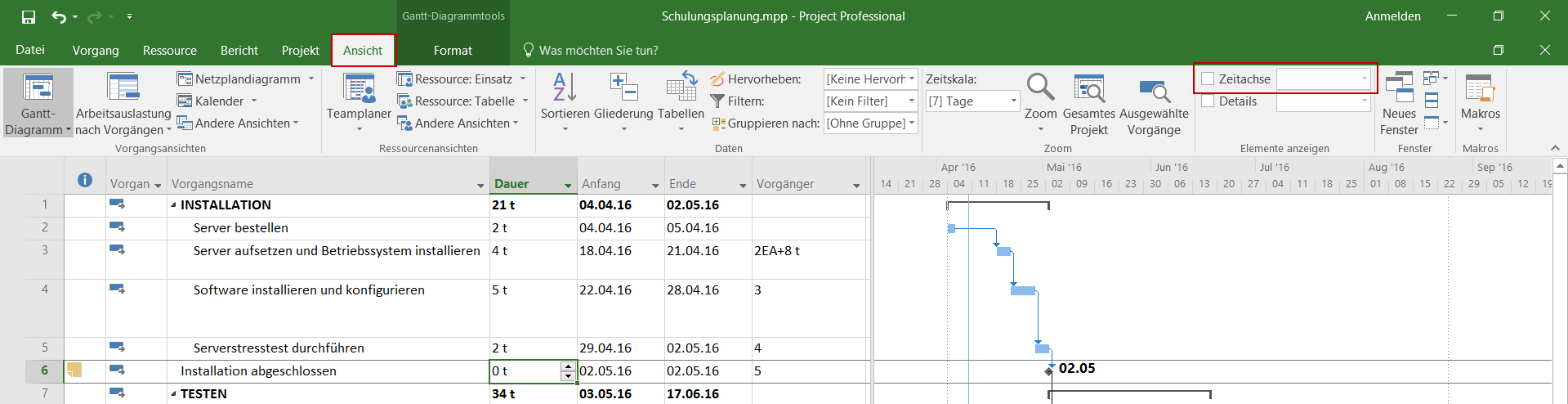
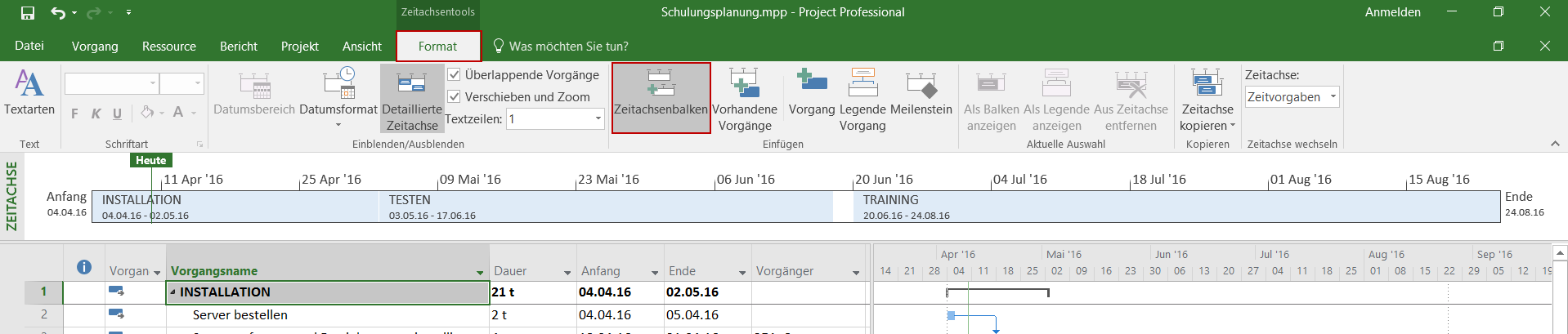
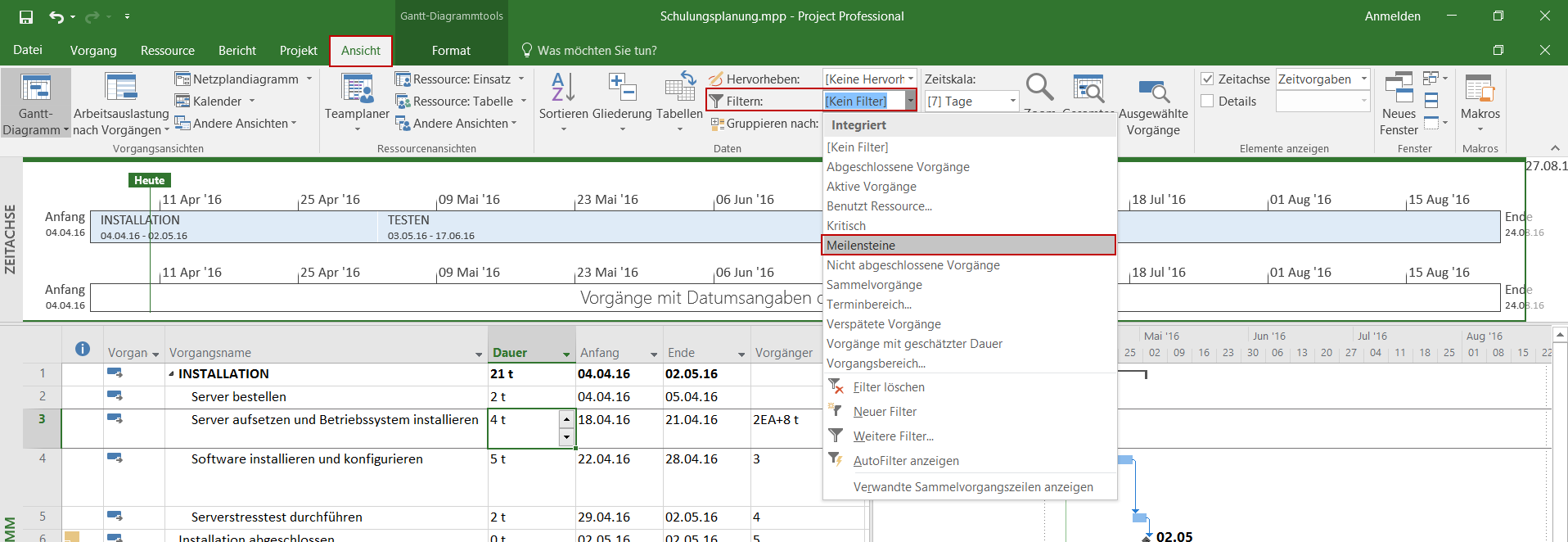
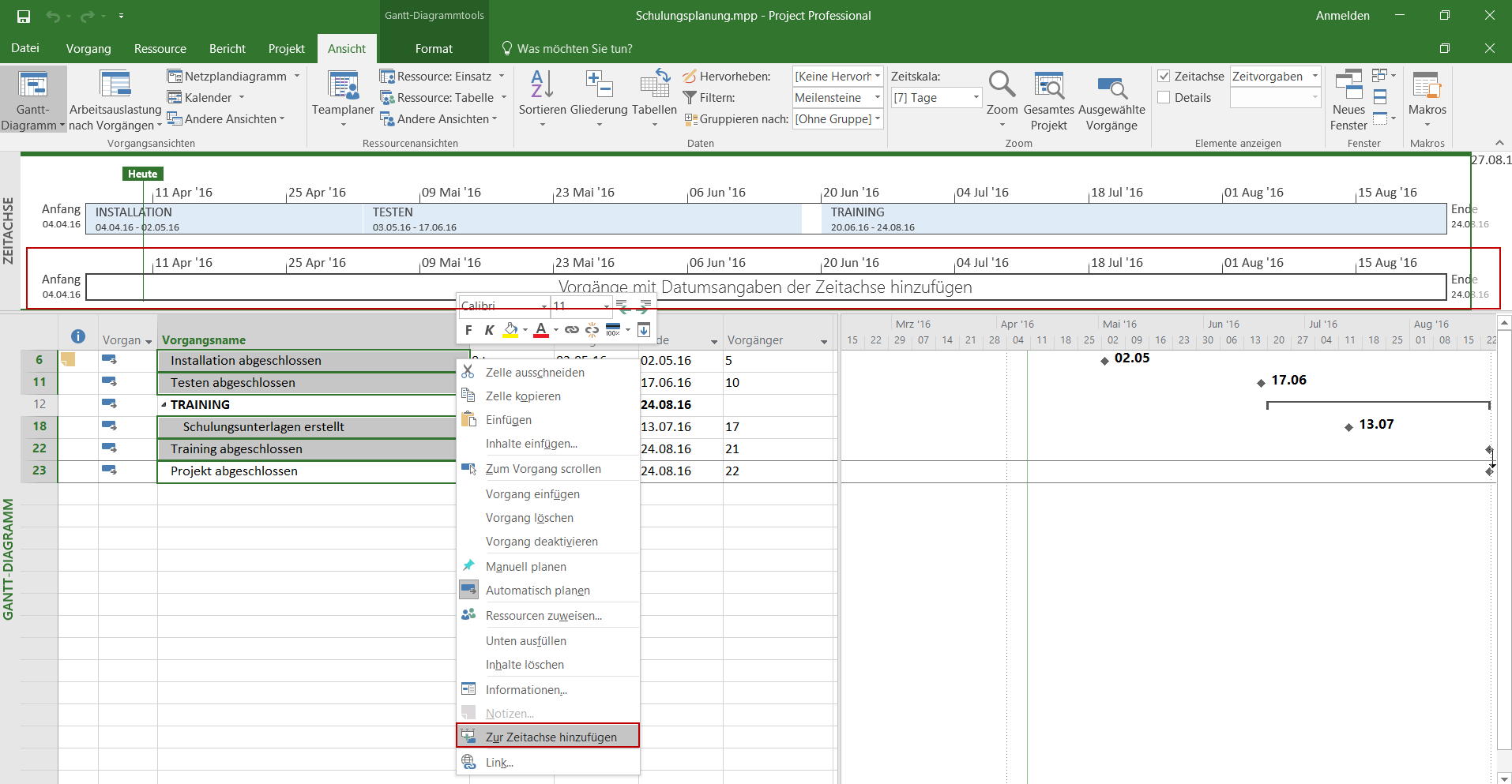
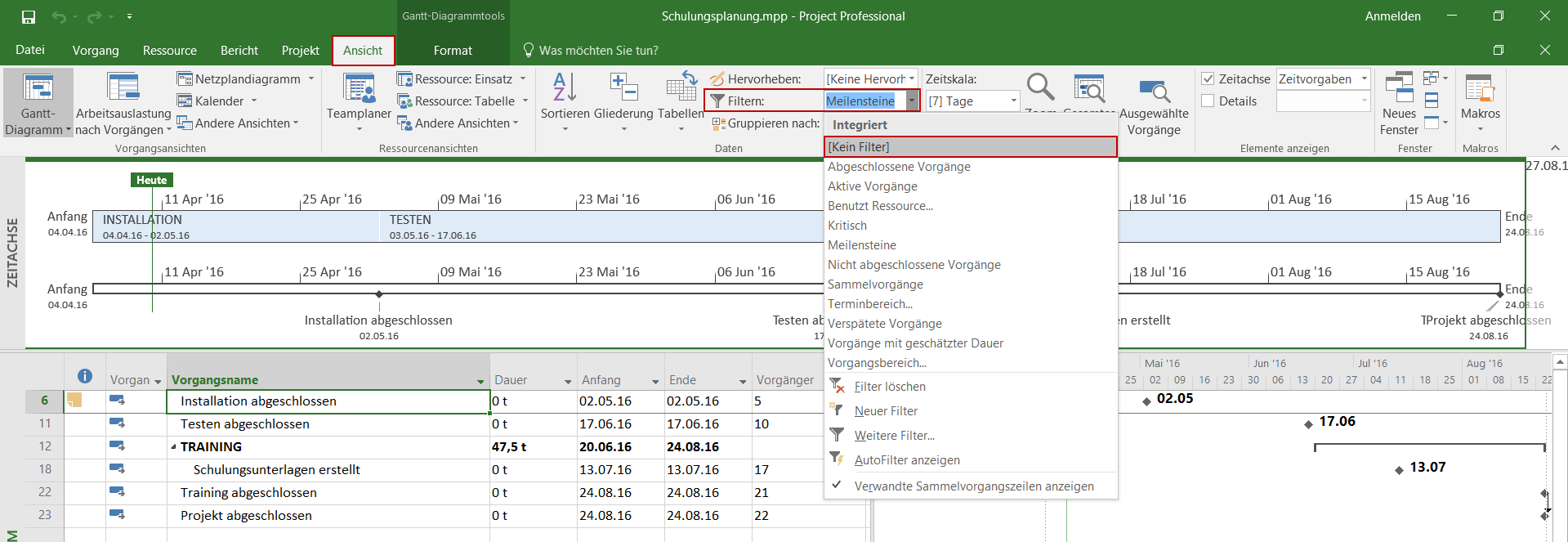
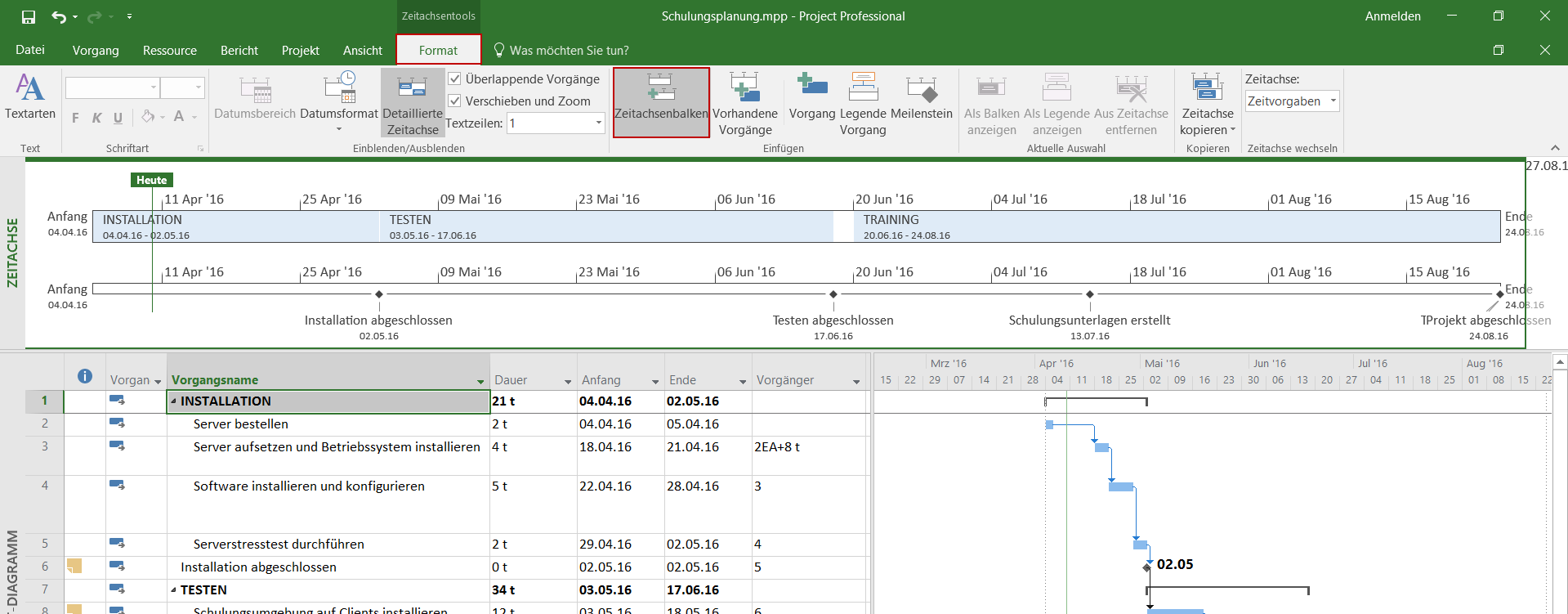
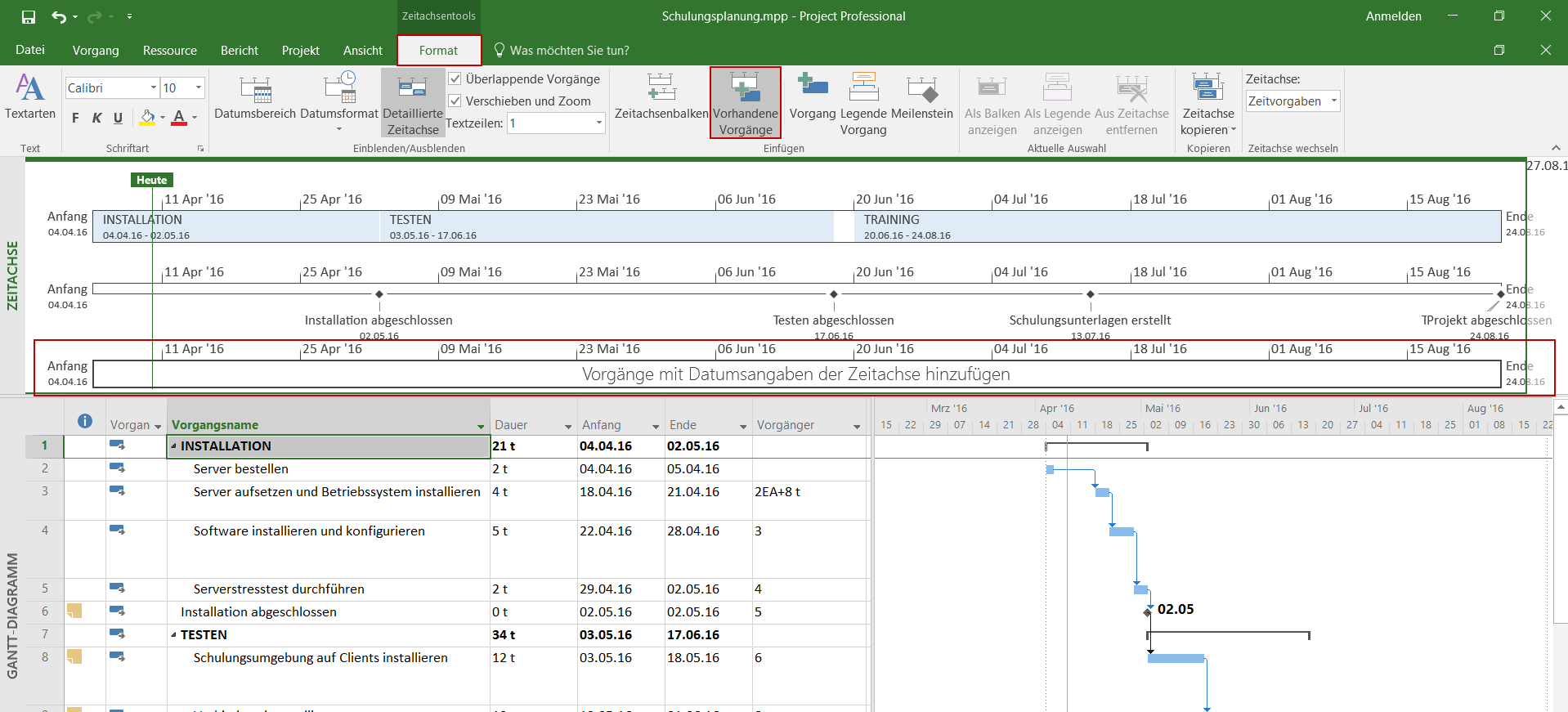
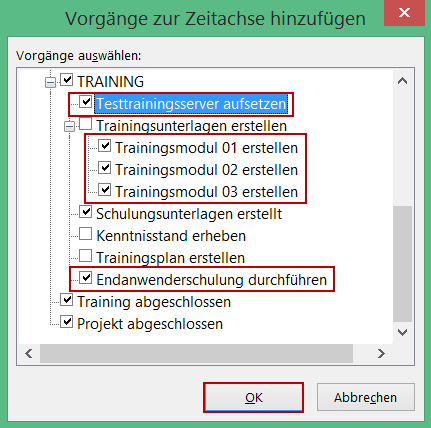
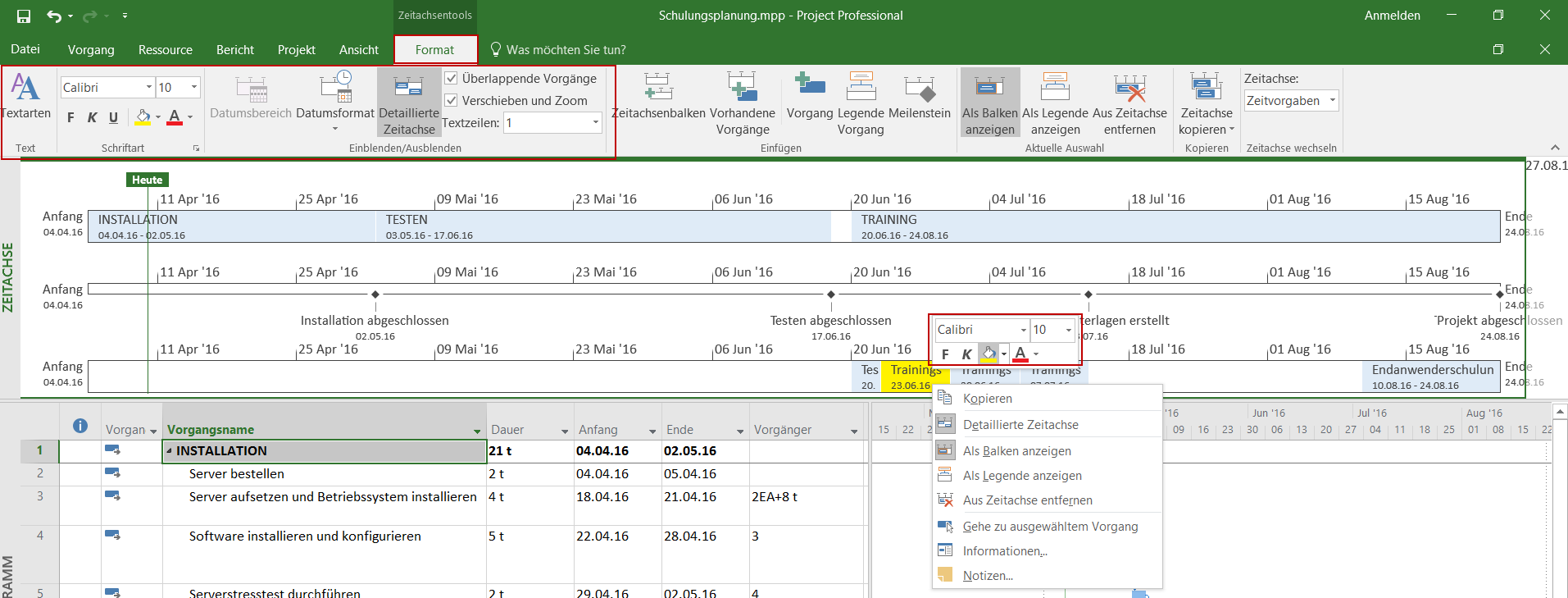
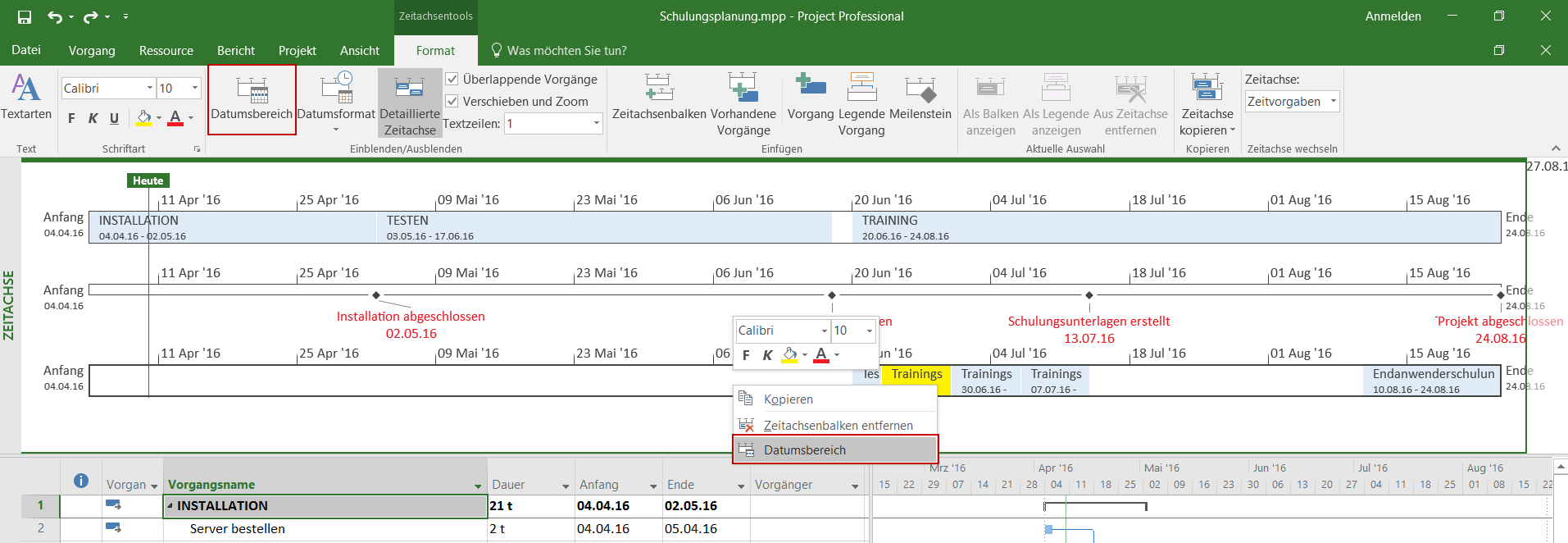
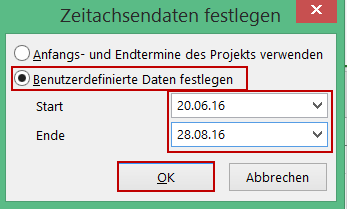
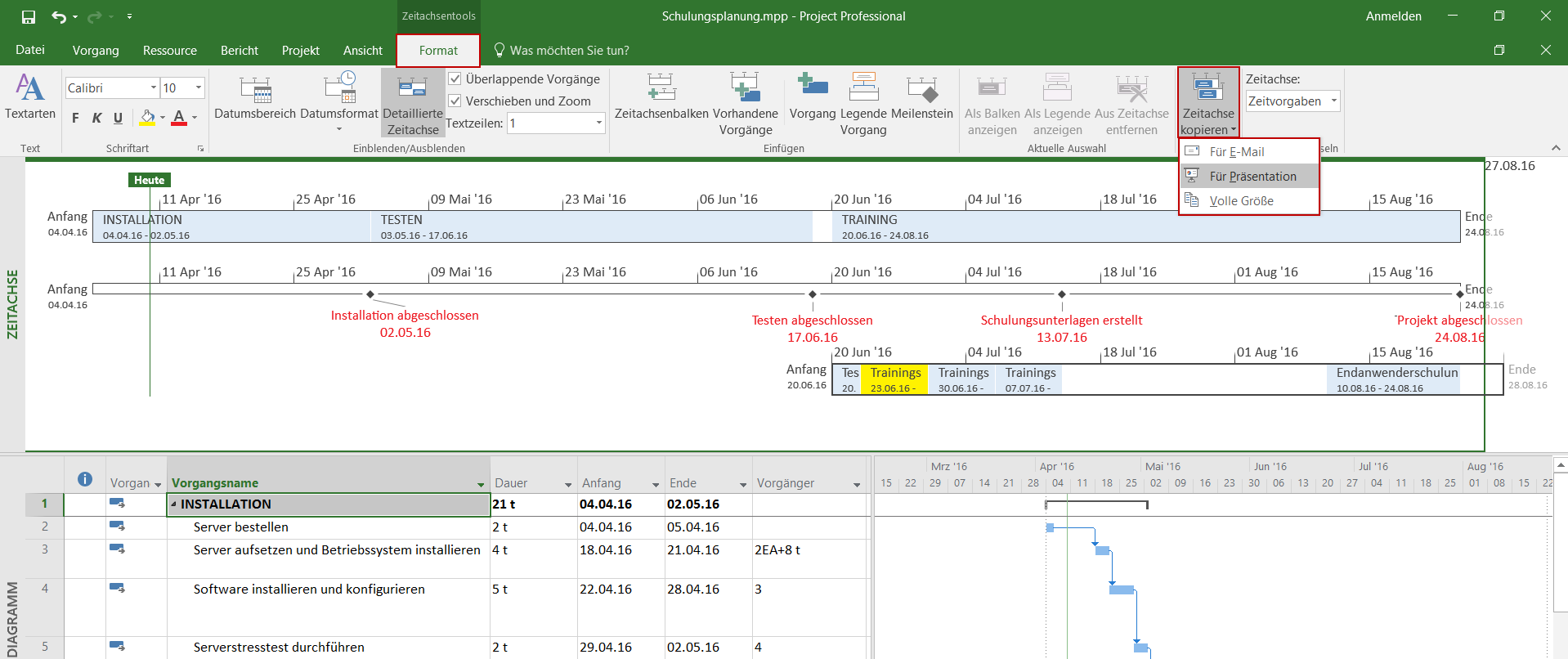

<img loading='lazy' style='display: none;' data-attachment-id-target='0' src=''><img loading='lazy' style='display: none;' data-attachment-id-target='1427' src='https://www.theprojectgroup.com/blog/wp-content/uploads/2016/07/MT_01.png'><img loading='lazy' style='display: none;' data-attachment-id-target='1428' src='https://www.theprojectgroup.com/blog/wp-content/uploads/2016/07/MT_02.png'><img loading='lazy' style='display: none;' data-attachment-id-target='1429' src='https://www.theprojectgroup.com/blog/wp-content/uploads/2016/07/MT_03.png'><img loading='lazy' style='display: none;' data-attachment-id-target='1430' src='https://www.theprojectgroup.com/blog/wp-content/uploads/2016/07/MT_04.png'><img loading='lazy' style='display: none;' data-attachment-id-target='1431' src='https://www.theprojectgroup.com/blog/wp-content/uploads/2016/07/MT_05.png'><img loading='lazy' style='display: none;' data-attachment-id-target='1432' src='https://www.theprojectgroup.com/blog/wp-content/uploads/2016/07/MT_06.png'><img loading='lazy' style='display: none;' data-attachment-id-target='1433' src='https://www.theprojectgroup.com/blog/wp-content/uploads/2016/07/MT_07.png'><img loading='lazy' style='display: none;' data-attachment-id-target='0' src=''><img loading='lazy' style='display: none;' data-attachment-id-target='1434' src='https://www.theprojectgroup.com/blog/wp-content/uploads/2016/07/MT_08.png'><img loading='lazy' style='display: none;' data-attachment-id-target='1435' src='https://www.theprojectgroup.com/blog/wp-content/uploads/2016/07/MT_09.png'><img loading='lazy' style='display: none;' data-attachment-id-target='0' src=''><img loading='lazy' style='display: none;' data-attachment-id-target='1436' src='https://www.theprojectgroup.com/blog/wp-content/uploads/2016/07/MT_10.png'><img loading='lazy' style='display: none;' data-attachment-id-target='1437' src='https://www.theprojectgroup.com/blog/wp-content/uploads/2016/07/MT_11.png'><img loading='lazy' style='display: none;' data-attachment-id-target='1438' src='https://www.theprojectgroup.com/blog/wp-content/uploads/2016/07/MT_12.png'><img loading='lazy' style='display: none;' data-attachment-id-target='1439' src='https://www.theprojectgroup.com/blog/wp-content/uploads/2016/07/MT_13.png'><img loading='lazy' style='display: none;' data-attachment-id-target='0' src=''><img loading='lazy' style='display: none;' data-attachment-id-target='6147' src='https://www.theprojectgroup.com/blog/wp-content/uploads/2020/03/Kathryn_Dixon_300x300px.jpg'><img loading='lazy' style='display: none;' data-attachment-id-target='0' src=''>{"id":1425,"date":"2023-08-04T15:00:16","date_gmt":"2023-08-04T13:00:16","guid":{"rendered":"https:\/\/www.theprojectgroup.com\/blog\/?p=1425"},"modified":"2024-07-03T16:03:04","modified_gmt":"2024-07-03T14:03:04","slug":"ms-project-timeline","status":"publish","type":"post","link":"https:\/\/www.theprojectgroup.com\/blog\/ms-project-timeline\/","title":{"rendered":"MS Project Timeline \u2013 mehrere Zeitstrahlen erstellen und clever nutzen (ab Version 2016)"},"content":{"rendered":"<p>Im Artikel zur <a href=\"https:\/\/www.theprojectgroup.com\/blog\/ms-project-zeitachse\/\" target=\"_blank\" rel=\"noopener\">MS Project Zeitachse<\/a> (bzw. Timeline oder Zeitstrahl) haben Sie gelernt, wie Sie mit der <strong>MS Project Timeline<\/strong> umgehen und diese optimal f\u00fcr Ihren Statusbericht nutzen. In der Version Microsoft Project 2016 und 2019 wurde die Timeline-Funktionalit\u00e4t gegen\u00fcber fr\u00fcheren Versionen erweitert. Dieser Artikel bezieht sich daher auf die Timeline-Funktionalit\u00e4t in MS Project 2016 und h\u00f6her.<\/p>\n<p>Lassen Sie sich alle Ihre individuell erstellten mehrfachen Timelines parallel anzeigen. Wie das geht, das lesen Sie in diesen Kapiteln:<\/p>\n<ul>\n<li><a href=\"#Kapitel1\">Phasen in einer MS Project Timeline darstellen<\/a><\/li>\n<li><a href=\"#Kapitel2\">Meilensteine in einer zweiten Timelind anlegen<\/a><\/li>\n<li><a href=\"#Kapitel3\">Ausgew\u00e4hlte Vorg\u00e4nge in einer dritten Timeline<\/a><\/li>\n<li><a href=\"#Kapitel4\">Anpassen und weiterverwenden der mehrfachen Timeline<\/a><\/li>\n<li><a href=\"#Kapitel5\">Zusammenfassung<\/a><\/li>\n<\/ul>\n<p>Legen wir los!<\/p>\n\n    <p class=\"datamintsbanner\">\n        <a href=\"https:\/\/bit.ly\/3OkEHIx\" target=\"_blank\" class=\"datamintsbanner__link\" title=\"Meilensteintrendanalyse MTA Kostenlos Download MicrosoftProject MSProject FreeMTA Projektmanagement\" style=\"display: block;\">\n            <img data-attachment-id=\"0\"decoding=\"async\" src=\"https:\/\/www.theprojectgroup.com\/blog\/wp-content\/uploads\/2022\/07\/TPG_Header_1400_MTA-Client_de.jpg\" class=\"datamintsbanner__image\" style=\"display: block; max-width: 100%\">\n        <\/a>\n    <\/p>\n    \n<p>Wenn die Timeline in Ihrem Projektplan nicht angezeigt wird, aktivieren Sie sie unter<em> Ansicht-Zeitachse<\/em>.<\/p>\n<figure id=\"attachment_1427\" aria-describedby=\"caption-attachment-1427\" style=\"width: 900px\" class=\"wp-caption aligncenter\"><a href=\"https:\/\/www.theprojectgroup.com\/blog\/wp-content\/uploads\/2016\/07\/MT_01.png\" target=\"_blank\" rel=\"noopener\"><img data-attachment-id=\"1427\"loading=\"lazy\" decoding=\"async\" class=\"wp-image-1427\" src=\"https:\/\/www.theprojectgroup.com\/blog\/wp-content\/uploads\/2016\/07\/MT_01.png\" alt=\"Mehrfache MS Project Timelines\" width=\"900\" height=\"232\" srcset=\"https:\/\/www.theprojectgroup.com\/blog\/wp-content\/uploads\/2016\/07\/MT_01.png 1919w, https:\/\/www.theprojectgroup.com\/blog\/wp-content\/uploads\/2016\/07\/MT_01-300x77.png 300w, https:\/\/www.theprojectgroup.com\/blog\/wp-content\/uploads\/2016\/07\/MT_01-1024x264.png 1024w\" sizes=\"(max-width: 900px) 100vw, 900px\" \/><\/a><figcaption id=\"caption-attachment-1427\" class=\"wp-caption-text\">Bild 1: MS Project Timeline aktivieren<\/figcaption><\/figure>\n<h2 id=\"Kapitel1\">Phasen in einer MS Project Timeline darstellen<\/h2>\n<p>Markieren Sie im ersten Schritt die Phasen, die Sie der ersten Timeline hinzuf\u00fcgen m\u00f6chten. Klicken Sie danach mit der rechten Maustaste auf einen der selektierten Vorg\u00e4nge, um das Kontextmen\u00fc zu \u00f6ffnen. Klicken Sie auf den Eintrag <em>Zur Zeitachse hinzuf\u00fcgen<\/em>.<\/p>\n<figure id=\"attachment_1428\" aria-describedby=\"caption-attachment-1428\" style=\"width: 900px\" class=\"wp-caption aligncenter\"><a href=\"https:\/\/www.theprojectgroup.com\/blog\/wp-content\/uploads\/2016\/07\/MT_02.png\"><img data-attachment-id=\"1428\"loading=\"lazy\" decoding=\"async\" class=\"wp-image-1428\" src=\"https:\/\/www.theprojectgroup.com\/blog\/wp-content\/uploads\/2016\/07\/MT_02.png\" alt=\"Mehrfache Timelines in MS Project 2016\" width=\"900\" height=\"624\" srcset=\"https:\/\/www.theprojectgroup.com\/blog\/wp-content\/uploads\/2016\/07\/MT_02.png 1293w, https:\/\/www.theprojectgroup.com\/blog\/wp-content\/uploads\/2016\/07\/MT_02-300x208.png 300w, https:\/\/www.theprojectgroup.com\/blog\/wp-content\/uploads\/2016\/07\/MT_02-1024x710.png 1024w\" sizes=\"(max-width: 900px) 100vw, 900px\" \/><\/a><figcaption id=\"caption-attachment-1428\" class=\"wp-caption-text\">Bild 2: Vorg\u00e4nge mit dem Kontextmen\u00fc der Zeitachse hinzuf\u00fcgen<\/figcaption><\/figure>\n<p>Um eine zweite Timeline hinzuzuf\u00fcgen, klicken Sie in den Zeitstrahl. Damit wird das Men\u00fcband f\u00fcr die Einstellungen der Timeline angepasst. Erstellen Sie einen zweiten Zeitstrahl \u00fcber <em>Format &#8211; Zeitachsenbalken.<\/em><\/p>\n<figure id=\"attachment_1429\" aria-describedby=\"caption-attachment-1429\" style=\"width: 900px\" class=\"wp-caption aligncenter\"><a href=\"https:\/\/www.theprojectgroup.com\/blog\/wp-content\/uploads\/2016\/07\/MT_03.png\"><img data-attachment-id=\"1429\"loading=\"lazy\" decoding=\"async\" class=\"wp-image-1429\" src=\"https:\/\/www.theprojectgroup.com\/blog\/wp-content\/uploads\/2016\/07\/MT_03.png\" alt=\"Mehrfache Timelines in Project 2016\" width=\"900\" height=\"192\" srcset=\"https:\/\/www.theprojectgroup.com\/blog\/wp-content\/uploads\/2016\/07\/MT_03.png 1918w, https:\/\/www.theprojectgroup.com\/blog\/wp-content\/uploads\/2016\/07\/MT_03-300x64.png 300w, https:\/\/www.theprojectgroup.com\/blog\/wp-content\/uploads\/2016\/07\/MT_03-1024x218.png 1024w\" sizes=\"(max-width: 900px) 100vw, 900px\" \/><\/a><figcaption id=\"caption-attachment-1429\" class=\"wp-caption-text\">Bild 3: Zeitstrahl erg\u00e4nzen<\/figcaption><\/figure>\n<div id=\"id69573cf6826b7\" class=\"iframecontainer iframecontainer--hidden\">\n            <div class=\"iframecontainer__head\" style=\"background: #D60B52!important;\">\n                <div class=\"iframecontainer__head__inner\" style=\"color:#ffffff;\" data-for=\"#id69573cf6826b7\">\n                    <p><strong>Download (PDF):<\/strong> 11 Schritte zum optimalen MS Project Projektplan (Tutorial)<\/p>\n                <\/div>\n                <div class=\"iframecontainer__head__icon\" data-for=\"#id69573cf6826b7\">\n                    <svg width=\"10px\" height=\"16px\" viewBox=\"1092 550 10 16\" version=\"1.1\" xmlns=\"http:\/\/www.w3.org\/2000\/svg\" xmlns:xlink=\"http:\/\/www.w3.org\/1999\/xlink\">\n                        <polygon class=\"iframecontainer__head__icon__pfeil\"  data-for=\"#id69573cf6826b7\" stroke=\"none\" fill=\"#ffffff\" fill-rule=\"evenodd\" points=\"1093.875 550 1101.875 558 1093.875 566 1092 564.125 1098.125 558 1092 551.875\"><\/polygon>\n                    <\/svg>\n                <\/div>\n            <\/div>\n            <div class=\"iframecontainer__iframe\">\n                <div class=\"iframecontainer__iframe__inner\">\n                    <p>Vermeiden Sie mit diesem Tutorial von Beginn an typische Stolperfallen, \u00fcber die Neulinge in MS Project sich gerne den Kopf zerbrechen, unsicher werden und Zeit verschwendet. Das wird Ihnen nicht passieren!<\/p>\n<p><span style=\"font-size: xx-small;\">* Pflichtfeld\u00a0 |\u00a0 <a href=\"https:\/\/www.theprojectgroup.com\/de\/datenschutz\/\" target=\"_blank\" rel=\"noopener\">Datenschutzhinweise<\/a><\/span><\/p>\n<div class=\"cookieconsent-optout-marketing\">Dieses Formular wird durch Ihre Cookie-Einstellung zu unserer Website blockiert. Bitte <a>klicken Sie hier<\/a> und w\u00e4hlen Sie mindestens die Marketing-Cookies aus. Dann wird dieses Formular angezeigt. Vielen Dank.<\/div>\n\n                \t<!-- DEUTSCH: Wichtig: nur den Code in data-download-asset \u00e4ndern - definiert Download -->\r\n<script type='text\/x-ccm-loader' data-ccm-loader-src=\"https:\/\/js-eu1.hsforms.net\/forms\/embed\/developer\/146642994.js\" defer><\/script>\r\n\r\n<div class=\"hs-form-html\"\r\n     data-download-asset=\"CU9D\"\r\n     data-region=\"eu1\"\r\n     data-form-id=\"32ae4d32-4e61-47ed-90d3-c7a25b28719d\"\r\n     data-portal-id=\"146642994\"><\/div>\r\n\r\n<script>\r\n(() => {\r\n  const FORM_ID = '32ae4d32-4e61-47ed-90d3-c7a25b28719d';\r\n  const FIELD   = '0-1\/download_asset';\r\n  const roots   = new Set();\r\n  const formsByRoot = new WeakMap();\r\n\r\n  const setViaApi = (root) => {\r\n    const code = root.dataset.downloadAsset || '';\r\n    const form = formsByRoot.get(root);\r\n    if (!code || !form) return;\r\n    form.setFieldValue(FIELD, code);\r\n  };\r\n\r\n  \/\/ 1) Wenn das Formular ready ist: Form-Instanz holen + Wert via API setzen\r\n  window.addEventListener('hs-form-event:on-ready', (event) => {\r\n    if (!window.HubSpotFormsV4) return;\r\n    const form = HubSpotFormsV4.getFormFromEvent(event);\r\n    if (!form || form.getFormId() !== FORM_ID) return;\r\n\r\n    const root = [...roots].find(r => r.contains(event.target));\r\n    if (!root) return;\r\n\r\n    formsByRoot.set(root, form);\r\n    setViaApi(root);\r\n  });\r\n\r\n  \/\/ 2) Kurz vor dem Absenden nochmal setzen (globaler Callback)\r\n  window.addEventListener('message', (event) => {\r\n    const d = event.data;\r\n    if (!d || d.type !== 'hsFormCallback' || d.eventName !== 'onFormSubmit') return;\r\n    if (d.id !== FORM_ID) return;\r\n\r\n    roots.forEach(setViaApi);\r\n  });\r\n\r\n  \/\/ Boot\r\n  document.addEventListener('DOMContentLoaded', () => {\r\n    document.querySelectorAll('.hs-form-html[data-download-asset][data-form-id=\"' + FORM_ID + '\"]')\r\n      .forEach(r => roots.add(r));\r\n  });\r\n})();\r\n<\/script>\n                    <style>\/* Kompaktere Darstellung f\u00fcr HubSpot Formulare *\/\n[data-hsfc-id=\"Renderer\"] .hsfc-Step .hsfc-Step__Content { padding: 0 20px 20px !important; }\n[data-hsfc-id=Renderer] .hsfc-TextField>*:not(:last-child) { margin-bottom:4px !important; }\n[data-hsfc-id=\"Renderer\"] .hsfc-Row { gap: 20px !important; margin-bottom: 12px !important; }\n[data-hsfc-id=\"Renderer\"] .hsfc-NavigationRow { margin-top: 6px !important; }\n[data-hsfc-id=\"Renderer\"] .hsfc-TextInput { padding: 8px !important; }<\/style>\n                <\/div>\n            <\/div>\n        <\/div><h2 id=\"Kapitel2\">Meilensteine in einer zweiten Timeline anlegen<\/h2>\n<p>Um alle Meilensteine der zweiten Timeline hinzuzuf\u00fcgen, klicken Sie in die Gantt-Ansicht, um im Men\u00fcband Zugriff auf die zugeh\u00f6rigen Ansichtseinstellungen zu erhalten. Aktivieren Sie den Filter Meilensteine \u00fcber <em>Ansicht \u2013 Filter \u2013 Meilensteine<\/em>.<\/p>\n<figure id=\"attachment_1430\" aria-describedby=\"caption-attachment-1430\" style=\"width: 900px\" class=\"wp-caption aligncenter\"><a href=\"https:\/\/www.theprojectgroup.com\/blog\/wp-content\/uploads\/2016\/07\/MT_04.png\"><img data-attachment-id=\"1430\"loading=\"lazy\" decoding=\"async\" class=\"wp-image-1430\" src=\"https:\/\/www.theprojectgroup.com\/blog\/wp-content\/uploads\/2016\/07\/MT_04.png\" alt=\"Mehrfache Timeline in Project - Meilensteinfilter \" width=\"900\" height=\"311\" srcset=\"https:\/\/www.theprojectgroup.com\/blog\/wp-content\/uploads\/2016\/07\/MT_04.png 1916w, https:\/\/www.theprojectgroup.com\/blog\/wp-content\/uploads\/2016\/07\/MT_04-300x104.png 300w, https:\/\/www.theprojectgroup.com\/blog\/wp-content\/uploads\/2016\/07\/MT_04-1024x354.png 1024w\" sizes=\"(max-width: 900px) 100vw, 900px\" \/><\/a><figcaption id=\"caption-attachment-1430\" class=\"wp-caption-text\">Bild 4: Meilensteinfilter anwenden<\/figcaption><\/figure>\n<p>Klicken Sie auf die zweite Timeline, um den Zielzeitstrahl f\u00fcr den n\u00e4chsten Schritt zu definieren. Markieren Sie alle Meilensteine und klicken Sie danach mit der rechten Maustaste auf einen der selektierten Vorg\u00e4nge, um das Kontextmen\u00fc zu \u00f6ffnen. Klicken Sie wieder auf den Eintrag <em>Zur Zeitachse hinzuf\u00fcgen.<\/em><\/p>\n<figure id=\"attachment_1431\" aria-describedby=\"caption-attachment-1431\" style=\"width: 900px\" class=\"wp-caption aligncenter\"><a href=\"https:\/\/www.theprojectgroup.com\/blog\/wp-content\/uploads\/2016\/07\/MT_05.png\"><img data-attachment-id=\"1431\"loading=\"lazy\" decoding=\"async\" class=\"wp-image-1431\" src=\"https:\/\/www.theprojectgroup.com\/blog\/wp-content\/uploads\/2016\/07\/MT_05.png\" alt=\"Mehrfache Timeline in Project - Meilensteine hinzuf\u00fcgen\" width=\"900\" height=\"467\" srcset=\"https:\/\/www.theprojectgroup.com\/blog\/wp-content\/uploads\/2016\/07\/MT_05.png 1914w, https:\/\/www.theprojectgroup.com\/blog\/wp-content\/uploads\/2016\/07\/MT_05-300x156.png 300w, https:\/\/www.theprojectgroup.com\/blog\/wp-content\/uploads\/2016\/07\/MT_05-1024x531.png 1024w\" sizes=\"(max-width: 900px) 100vw, 900px\" \/><\/a><figcaption id=\"caption-attachment-1431\" class=\"wp-caption-text\">Bild 5: Meilensteine der zweiten Timeline hinzuf\u00fcgen<\/figcaption><\/figure>\n<p>Anschlie\u00dfend werden die zuvor ausgew\u00e4hlten Meilensteine in der zweiten Timeline dargestellt.<\/p>\n\n    <p class=\"datamintsbanner\">\n        <a href=\"https:\/\/bit.ly\/3OkEHIx\" target=\"_blank\" class=\"datamintsbanner__link\" title=\"Meilensteintrendanalyse MTA Kostenlos Download MicrosoftProject MSProject FreeMTA Projektmanagement\" style=\"display: block;\">\n            <img data-attachment-id=\"0\"decoding=\"async\" src=\"https:\/\/www.theprojectgroup.com\/blog\/wp-content\/uploads\/2022\/07\/TPG_Header_1400_MTA-Client_de.jpg\" class=\"datamintsbanner__image\" style=\"display: block; max-width: 100%\">\n        <\/a>\n    <\/p>\n    \n<h2 id=\"Kapitel3\">Ausgew\u00e4hlte Vorg\u00e4nge in einer dritten Timeline<\/h2>\n<p>Entfernen Sie den Filter Meilensteine, indem Sie die Gantt-Ansicht aktivieren und mit <em>Ansicht \u2013 Filter \u2013 [Kein Filter]<\/em> den leeren Filter anwenden.<\/p>\n<figure id=\"attachment_1432\" aria-describedby=\"caption-attachment-1432\" style=\"width: 900px\" class=\"wp-caption aligncenter\"><a href=\"https:\/\/www.theprojectgroup.com\/blog\/wp-content\/uploads\/2016\/07\/MT_06.png\"><img data-attachment-id=\"1432\"loading=\"lazy\" decoding=\"async\" class=\"wp-image-1432\" src=\"https:\/\/www.theprojectgroup.com\/blog\/wp-content\/uploads\/2016\/07\/MT_06.png\" alt=\"Mehrfache Timelines in Project - Filter zur\u00fccksetzen\" width=\"900\" height=\"311\" srcset=\"https:\/\/www.theprojectgroup.com\/blog\/wp-content\/uploads\/2016\/07\/MT_06.png 1919w, https:\/\/www.theprojectgroup.com\/blog\/wp-content\/uploads\/2016\/07\/MT_06-300x104.png 300w, https:\/\/www.theprojectgroup.com\/blog\/wp-content\/uploads\/2016\/07\/MT_06-1024x354.png 1024w\" sizes=\"(max-width: 900px) 100vw, 900px\" \/><\/a><figcaption id=\"caption-attachment-1432\" class=\"wp-caption-text\">Bild 6: Filter zur\u00fccksetzen<\/figcaption><\/figure>\n<p>Klicken Sie erneut in die Ansicht <em>Zeitachse<\/em>, um das Men\u00fcband f\u00fcr die Zeitachseneinstellungen zu aktivieren. Erstellen Sie eine weitere Timeline \u00fcber <em>Format &#8211; Zeitachsenbalken.<\/em><\/p>\n<figure id=\"attachment_1433\" aria-describedby=\"caption-attachment-1433\" style=\"width: 900px\" class=\"wp-caption aligncenter\"><a href=\"https:\/\/www.theprojectgroup.com\/blog\/wp-content\/uploads\/2016\/07\/MT_07.png\"><img data-attachment-id=\"1433\"loading=\"lazy\" decoding=\"async\" class=\"wp-image-1433\" src=\"https:\/\/www.theprojectgroup.com\/blog\/wp-content\/uploads\/2016\/07\/MT_07.png\" alt=\"Mehrfache Timelines in Project\" width=\"900\" height=\"352\" srcset=\"https:\/\/www.theprojectgroup.com\/blog\/wp-content\/uploads\/2016\/07\/MT_07.png 1919w, https:\/\/www.theprojectgroup.com\/blog\/wp-content\/uploads\/2016\/07\/MT_07-300x117.png 300w, https:\/\/www.theprojectgroup.com\/blog\/wp-content\/uploads\/2016\/07\/MT_07-1024x401.png 1024w\" sizes=\"(max-width: 900px) 100vw, 900px\" \/><\/a><figcaption id=\"caption-attachment-1433\" class=\"wp-caption-text\">Bild 7: Weitere Timeline hinzuf\u00fcgen<\/figcaption><\/figure>\n\n    <p class=\"datamintsbanner\">\n        <a href=\"\" target=\"_blank\" class=\"datamintsbanner__link\" title=\"Motorworld Event (TPG Webinar)\" style=\"display: block;\">\n            <img data-attachment-id=\"0\"decoding=\"async\" src=\"\" class=\"datamintsbanner__image\" style=\"display: block; max-width: 100%\">\n        <\/a>\n    <\/p>\n    \n<p>Klicken Sie auf die Timeline, zu der Sie ausgew\u00e4hlte Vorg\u00e4nge hinzuf\u00fcgen m\u00f6chten. Sie k\u00f6nnen wie zuvor auch f\u00fcr einzelne Vorg\u00e4nge den Men\u00fcpunkt <em>zur Zeitachse hinzuf\u00fcgen<\/em> verwenden. Alternativ k\u00f6nnen Sie \u00fcber <em>Format \u2013 Vorhandene Vorg\u00e4nge<\/em> eine Auswahlliste zur direkten Selektion \u00f6ffnen.<\/p>\n<figure id=\"attachment_1434\" aria-describedby=\"caption-attachment-1434\" style=\"width: 900px\" class=\"wp-caption aligncenter\"><a href=\"https:\/\/www.theprojectgroup.com\/blog\/wp-content\/uploads\/2016\/07\/MT_08.png\"><img data-attachment-id=\"1434\"loading=\"lazy\" decoding=\"async\" class=\"wp-image-1434\" src=\"https:\/\/www.theprojectgroup.com\/blog\/wp-content\/uploads\/2016\/07\/MT_08.png\" alt=\"Mehrfache Timeline in Project - Vorg\u00e4nge hinzuf\u00fcgen\" width=\"900\" height=\"409\" srcset=\"https:\/\/www.theprojectgroup.com\/blog\/wp-content\/uploads\/2016\/07\/MT_08.png 1918w, https:\/\/www.theprojectgroup.com\/blog\/wp-content\/uploads\/2016\/07\/MT_08-300x136.png 300w, https:\/\/www.theprojectgroup.com\/blog\/wp-content\/uploads\/2016\/07\/MT_08-1024x465.png 1024w\" sizes=\"(max-width: 900px) 100vw, 900px\" \/><\/a><figcaption id=\"caption-attachment-1434\" class=\"wp-caption-text\">Bild 8: Vorhandene Vorg\u00e4nge der Timeline hinzuf\u00fcgen<\/figcaption><\/figure>\n<p>Es \u00f6ffnet sich ein Dialogfenster, in dem alle Vorg\u00e4nge, die bereits einer der Timelines hinzugef\u00fcgt wurden, markiert sind.<\/p>\n<p>W\u00e4hlen Sie Vorg\u00e4nge aus, die Sie der neuen Timeline hinzuf\u00fcgen m\u00f6chten. Klicken Sie anschlie\u00dfend auf <em>OK,<\/em> um das Dialogfenster zu schlie\u00dfen.<\/p>\n<figure id=\"attachment_1435\" aria-describedby=\"caption-attachment-1435\" style=\"width: 400px\" class=\"wp-caption aligncenter\"><a href=\"https:\/\/www.theprojectgroup.com\/blog\/wp-content\/uploads\/2016\/07\/MT_09.png\"><img data-attachment-id=\"1435\"loading=\"lazy\" decoding=\"async\" class=\"wp-image-1435\" src=\"https:\/\/www.theprojectgroup.com\/blog\/wp-content\/uploads\/2016\/07\/MT_09.png\" alt=\"Mehrfache Timeline in Project - Vorg\u00e4nge hinzuf\u00fcgen\" width=\"400\" height=\"397\" srcset=\"https:\/\/www.theprojectgroup.com\/blog\/wp-content\/uploads\/2016\/07\/MT_09.png 431w, https:\/\/www.theprojectgroup.com\/blog\/wp-content\/uploads\/2016\/07\/MT_09-150x150.png 150w, https:\/\/www.theprojectgroup.com\/blog\/wp-content\/uploads\/2016\/07\/MT_09-300x298.png 300w\" sizes=\"(max-width: 400px) 100vw, 400px\" \/><\/a><figcaption id=\"caption-attachment-1435\" class=\"wp-caption-text\">Bild 9: Ausgew\u00e4hlte Vorg\u00e4nge zum Hinzuf\u00fcgen<\/figcaption><\/figure>\n\n    <p class=\"datamintsbanner\">\n        <a href=\"https:\/\/bit.ly\/3vY038o\" target=\"_blank\" class=\"datamintsbanner__link\" title=\"Seminar MS Project Schulung Grundlagen MicrosoftProject Einsteiger Projekt Projektmanagement PM\" style=\"display: block;\">\n            <img data-attachment-id=\"0\"decoding=\"async\" src=\"https:\/\/www.theprojectgroup.com\/blog\/wp-content\/uploads\/2022\/07\/TPG_Header_1400_Project-lernen_de.jpg\" class=\"datamintsbanner__image\" style=\"display: block; max-width: 100%\">\n        <\/a>\n    <\/p>\n    \n<h2 id=\"Kapitel4\">Anpassen und weiterverwenden der mehrfachen Timelines<\/h2>\n<p>Nutzen Sie anschlie\u00dfend das Kontextmen\u00fc oder die Schaltfl\u00e4chen auf der Registerkarte <em>Format<\/em>, um die Balken entsprechend Ihrer Anforderungen zu formatieren.<\/p>\n<figure id=\"attachment_1436\" aria-describedby=\"caption-attachment-1436\" style=\"width: 900px\" class=\"wp-caption aligncenter\"><a href=\"https:\/\/www.theprojectgroup.com\/blog\/wp-content\/uploads\/2016\/07\/MT_10.png\"><img data-attachment-id=\"1436\"loading=\"lazy\" decoding=\"async\" class=\"wp-image-1436\" src=\"https:\/\/www.theprojectgroup.com\/blog\/wp-content\/uploads\/2016\/07\/MT_10.png\" alt=\"Mehrfache Timeline in MS Project - Balken formatieren\" width=\"900\" height=\"343\" srcset=\"https:\/\/www.theprojectgroup.com\/blog\/wp-content\/uploads\/2016\/07\/MT_10.png 1913w, https:\/\/www.theprojectgroup.com\/blog\/wp-content\/uploads\/2016\/07\/MT_10-300x114.png 300w, https:\/\/www.theprojectgroup.com\/blog\/wp-content\/uploads\/2016\/07\/MT_10-1024x390.png 1024w\" sizes=\"(max-width: 900px) 100vw, 900px\" \/><\/a><figcaption id=\"caption-attachment-1436\" class=\"wp-caption-text\">Bild 10: Balken formatieren<\/figcaption><\/figure>\n<p>Sie k\u00f6nnen auch f\u00fcr einzelne Timelines den angezeigten <strong>Datumsbereich<\/strong> \u00e4ndern. Markieren Sie daf\u00fcr eine Timeline und klicken Sie auf <em>Format \u2013 Datumsbereich<\/em> oder \u00f6ffnen Sie das Kontextmen\u00fc f\u00fcr einen Zeitstrahl und w\u00e4hlen Sie den Eintrag <em>Datumsbereich<\/em>.<\/p>\n<figure id=\"attachment_1437\" aria-describedby=\"caption-attachment-1437\" style=\"width: 900px\" class=\"wp-caption aligncenter\"><a href=\"https:\/\/www.theprojectgroup.com\/blog\/wp-content\/uploads\/2016\/07\/MT_11.png\"><img data-attachment-id=\"1437\"loading=\"lazy\" decoding=\"async\" class=\"wp-image-1437\" src=\"https:\/\/www.theprojectgroup.com\/blog\/wp-content\/uploads\/2016\/07\/MT_11.png\" alt=\"Mehrfache Timeline in MS Project - Datumsbereich anpassen\" width=\"900\" height=\"311\" srcset=\"https:\/\/www.theprojectgroup.com\/blog\/wp-content\/uploads\/2016\/07\/MT_11.png 1913w, https:\/\/www.theprojectgroup.com\/blog\/wp-content\/uploads\/2016\/07\/MT_11-300x104.png 300w, https:\/\/www.theprojectgroup.com\/blog\/wp-content\/uploads\/2016\/07\/MT_11-1024x354.png 1024w\" sizes=\"(max-width: 900px) 100vw, 900px\" \/><\/a><figcaption id=\"caption-attachment-1437\" class=\"wp-caption-text\">Bild 11: Datumsbereich anpassen<\/figcaption><\/figure>\n<p>W\u00e4hlen Sie im Dialogfenster <em>Zeitachsendaten festlegen<\/em> die Option <em>Benutzerdefinierte Daten festlegen<\/em> und geben Sie Termine f\u00fcr <em>Start<\/em> und <em>Ende<\/em> ein. Schlie\u00dfen Sie das Dialogfenster mit <em>OK<\/em>.<\/p>\n<figure id=\"attachment_1438\" aria-describedby=\"caption-attachment-1438\" style=\"width: 300px\" class=\"wp-caption aligncenter\"><a href=\"https:\/\/www.theprojectgroup.com\/blog\/wp-content\/uploads\/2016\/07\/MT_12.png\"><img data-attachment-id=\"1438\"loading=\"lazy\" decoding=\"async\" class=\"wp-image-1438\" src=\"https:\/\/www.theprojectgroup.com\/blog\/wp-content\/uploads\/2016\/07\/MT_12.png\" alt=\"Mehrfache Zeitachsen in MS Project - Datumsbereich festlegen\" width=\"300\" height=\"181\" srcset=\"https:\/\/www.theprojectgroup.com\/blog\/wp-content\/uploads\/2016\/07\/MT_12.png 347w, https:\/\/www.theprojectgroup.com\/blog\/wp-content\/uploads\/2016\/07\/MT_12-300x181.png 300w\" sizes=\"(max-width: 300px) 100vw, 300px\" \/><\/a><figcaption id=\"caption-attachment-1438\" class=\"wp-caption-text\">Bild 12: Datumsbereich festlegen<\/figcaption><\/figure>\n<blockquote><p><strong>Unser Tipp:<\/strong> Beachten Sie, dass diese Einstellung nicht dynamisch ist. Wenn einer der angezeigten Vorg\u00e4nge nicht mehr in die gew\u00e4hlte Periode f\u00e4llt, wird er nicht angezeigt.<\/p><\/blockquote>\n<p>Neu in der Project Version 2019 ist die<strong> Benennung der unterschiedlichen Zeitachsen<\/strong>. Unabh\u00e4ngig von den Vorgangsbezeichnungen bzw. den Namen der Sammelvorg\u00e4nge k\u00f6nnen Sie jede Timeline in Microsoft Project 2019 mit einem aussagekr\u00e4ftigen Namen bezeichnen.<\/p>\n<p>Wenn der Bereich <em>Zeitachse<\/em> markiert \/ aktiv ist, erscheint unter dem Men\u00fcpunkte <em>Format<\/em> ein Symbol <em>Balkenbezeichnung<\/em>. Es \u00f6ffnet sich ein Fenster in dem Sie die Namen der Timelines eintragen \/ \u00e4ndern k\u00f6nnen.<\/p>\n<p>Auch neu in der Version 2019 ist die<strong> Darstellung des Arbeitsfortschritts in der Timeline<\/strong>. Die Farbe des Vorgangs in der Timeline wird entsprechend der<em> % Arbeit abgeschl.<\/em> ge\u00e4ndert. Ein Haken zeigt hier die 100 % Erledigung an.<\/p>\n<p>Und so verwenden Sie mehrfache Timelines <strong>mit anderen Office Programmen<\/strong><\/p>\n<p>Die mehrfachen Timelines k\u00f6nnen Sie wie die einfachen Timelines \u00e4lterer MS Project Versionen in PowerPoint, E-Mails und anderen Applikationen weiterverwenden.<\/p>\n<p>Kopieren Sie daf\u00fcr Ihre Zeitachsen mit <em>Format \u2013 Zeitachse<\/em> kopieren und w\u00e4hlen Sie die Zielapplikation aus. F\u00fcgen Sie die Timeline in der Zielapplikation \u00fcber STRG-V oder <em>Einf\u00fcgen<\/em> ein.<\/p>\n<figure id=\"attachment_1439\" aria-describedby=\"caption-attachment-1439\" style=\"width: 900px\" class=\"wp-caption aligncenter\"><a href=\"https:\/\/www.theprojectgroup.com\/blog\/wp-content\/uploads\/2016\/07\/MT_13.png\"><img data-attachment-id=\"1439\"loading=\"lazy\" decoding=\"async\" class=\"wp-image-1439\" src=\"https:\/\/www.theprojectgroup.com\/blog\/wp-content\/uploads\/2016\/07\/MT_13.png\" alt=\"Mehrfache Timelines in MS Project - kopieren\" width=\"900\" height=\"378\" srcset=\"https:\/\/www.theprojectgroup.com\/blog\/wp-content\/uploads\/2016\/07\/MT_13.png 1918w, https:\/\/www.theprojectgroup.com\/blog\/wp-content\/uploads\/2016\/07\/MT_13-300x126.png 300w, https:\/\/www.theprojectgroup.com\/blog\/wp-content\/uploads\/2016\/07\/MT_13-1024x430.png 1024w\" sizes=\"(max-width: 900px) 100vw, 900px\" \/><\/a><figcaption id=\"caption-attachment-1439\" class=\"wp-caption-text\">Bild 13: Zeitachse kopieren<\/figcaption><\/figure>\n<h2 id=\"Kapitel5\">Zusammenfassung<\/h2>\n<p>In diesem Artikel haben Sie erfahren, wie Sie mehrfache Timelines in MS Project 2016 oder h\u00f6her<\/p>\n<ul>\n<li>anlegen,<\/li>\n<li>zur Ansicht ausw\u00e4hlen,<\/li>\n<li>auf unterschiedliche Schwerpunkte ausrichten sowie<\/li>\n<li>weiter anpassen und\u00a0einsetzen k\u00f6nnen.<\/li>\n<\/ul>\n<p>Lesen Sie hier, wie Sie die <a href=\"https:\/\/www.theprojectgroup.com\/blog\/ms-project-zeitachse\/\" target=\"_blank\" rel=\"noopener\">MS Project Zeitachse<\/a> formatieren, anpassen und optimal f\u00fcr Ihre diversen Berichte nutzen.<\/p>\n\n    <p class=\"datamintsbanner\">\n        <a href=\"https:\/\/bit.ly\/3IWzlQw\" target=\"_blank\" class=\"datamintsbanner__link\" title=\"TPG ProjectPowerPack Microsoft 365 Projektmanagement\" style=\"display: block;\">\n            <img data-attachment-id=\"0\"decoding=\"async\" src=\"https:\/\/www.theprojectgroup.com\/blog\/wp-content\/uploads\/2025\/04\/PPP_Blog_Banner_3_1300px-AS_tiny.jpg\" class=\"datamintsbanner__image\" style=\"display: block; max-width: 100%\">\n        <\/a>\n    <\/p>\n    \nSie wollen das Gelernte vertiefen, weitere wichtige Tipps erfahren und Ihre Fragen stellen? Dann sind Sie genau richtig beim TPG <a href=\"https:\/\/www.theprojectgroup.com\/de\/ms-project-seminar-einsteiger-schulung\" target=\"_blank\" rel=\"noopener\">Microsoft Project Seminar (Grundlagen)<\/a>.<\/p>\n<blockquote><p><strong>Unsere Tipps zum Schluss: <\/strong>Lernen Sie das individuell anpassbare \u201cThe PPM Paradise\u201d kennen \u2013 <span dir=\"ltr\" role=\"presentation\">die optimale Umgebung f\u00fcr ein unternehmensweites Projekt-, Programm-, Portfolio- und Ressourcenmanagement (PPM). Laden Sie sich jetzt <\/span><a href=\"https:\/\/www.theprojectgroup.com\/data\/Downloads_eBooks\/TPG_PPM_Paradise_eBook_-_TPG_TheProjectGroup.pdf\" target=\"_blank\" rel=\"noopener\"><span dir=\"ltr\" role=\"presentation\">hier das eBook dazu herunter<\/span><\/a><span dir=\"ltr\" role=\"presentation\"> (nur klicken, ohne Formular).<\/span><\/p>\n<p><span dir=\"ltr\" role=\"presentation\">Und abonnieren Sie unseren <\/span><a href=\"https:\/\/www.theprojectgroup.com\/de\/projektmanagement-newsletter\" target=\"_blank\" rel=\"noopener\"><span dir=\"ltr\" role=\"presentation\">Projektmanagement Newsletter<\/span><\/a> mit praxisstarken Artikeln, Webinaren, Podcasts, eBooks etc. f\u00fcr ein h\u00f6heres Reifengrad-Level Ihres Projektmanagements!<\/p><\/blockquote>\n<p><strong>Haben Sie noch Fragen? Dann hinterlassen Sie einen Kommentar, auf den wir in K\u00fcrze antworten werden \u2013 garantiert.<\/strong><\/p>\n<span style='display:none;'>FALSE<\/span><hr \/>\n<p><a href=\"https:\/\/www.theprojectgroup.com\/blog\/wp-content\/uploads\/2020\/03\/Kathryn_Dixon_300x300px.jpg\"><img data-attachment-id=\"6147\"loading=\"lazy\" decoding=\"async\" class=\"wp-image-6147 size-thumbnail alignleft\" src=\"https:\/\/www.theprojectgroup.com\/blog\/wp-content\/uploads\/2020\/03\/Kathryn_Dixon_300x300px-150x150.jpg\" alt=\"Kathryn Dixon\" width=\"150\" height=\"150\" srcset=\"https:\/\/www.theprojectgroup.com\/blog\/wp-content\/uploads\/2020\/03\/Kathryn_Dixon_300x300px-150x150.jpg 150w, https:\/\/www.theprojectgroup.com\/blog\/wp-content\/uploads\/2020\/03\/Kathryn_Dixon_300x300px.jpg 300w\" sizes=\"(max-width: 150px) 100vw, 150px\" \/><\/a><strong>Die Autorin:<br \/>\nKathryn Dixon<\/strong><\/p>\n<p>Kathryn Dixon ist seit Anfang der Neunziger im internationalen Projektmanagement t\u00e4tig und hat bislang vom Projektteammitglied, \u00fcber Projektleiterin bis hin zur Operations Managerin verschiedenste Rollen ausgef\u00fchrt. Dar\u00fcber hinaus verf\u00fcgt sie \u00fcber mehrere Jahre Erfahrung in Human Resources.<\/p>\n<p>Vor Ihrem Wechsel zu TPG Sales Mitte 2015\u00a0war\u00a0Kathryn Dixon bei TPG The Project Group GmbH als Trainerin und Consultant sowie Autorin im Bereich der TPG Produktdokumentation und Social Media Content t\u00e4tig. Als IHK-zertifizierte Trainerin leitete sie u.a. Anwenderseminare zu Microsoft Project und Microsoft Project Server sowie zu Projektmanagement-Methodik in deutscher und englischer Sprache.<\/p>\n<p>Mehr zu Kathryn Dixon auf <a href=\"https:\/\/www.xing.com\/profile\/Kathryn_Dixon\/cv\" target=\"_blank\" rel=\"noopener\">Xing<\/a> und <a href=\"https:\/\/www.linkedin.com\/in\/kathryn-dixon-27701a5\/?originalSubdomain=de\" target=\"_blank\" rel=\"noopener\">LinkedIn<\/a><\/p>\n\n    <p class=\"datamintsbanner\">\n        <a href=\"https:\/\/bit.ly\/3udKM2C\" target=\"_blank\" class=\"datamintsbanner__link\" title=\"Job TPG Bewerbung Wirsuchendich TPG TheProjectGroup Consultant Microsoft PPM Jobs\" style=\"display: block;\">\n            <img data-attachment-id=\"0\"decoding=\"async\" src=\"https:\/\/www.theprojectgroup.com\/blog\/wp-content\/uploads\/2022\/10\/Jobs-3.jpg\" class=\"datamintsbanner__image\" style=\"display: block; max-width: 100%\">\n        <\/a>\n    <\/p>\n    \n","protected":false},"excerpt":{"rendered":"<p>Im Artikel zur MS Project Zeitachse (bzw. Timeline oder Zeitstrahl) haben Sie gelernt, wie Sie mit der MS Project Timeline umgehen und diese optimal f\u00fcr Ihren Statusbericht nutzen. In der Version Microsoft Project 2016 und 2019 wurde die Timeline-Funktionalit\u00e4t gegen\u00fcber fr\u00fcheren Versionen erweitert. Dieser Artikel bezieht sich daher auf die Timeline-Funktionalit\u00e4t in MS Project 2016<\/p>\n<div class=\"read-more\"><a href=\"https:\/\/www.theprojectgroup.com\/blog\/ms-project-timeline\/\" title=\"Weiterlesen\">Weiterlesen<\/a><\/div>\n","protected":false},"author":19,"featured_media":9183,"comment_status":"open","ping_status":"open","sticky":false,"template":"","format":"standard","meta":{"footnotes":""},"categories":[24],"tags":[],"_links":{"self":[{"href":"https:\/\/www.theprojectgroup.com\/blog\/wp-json\/wp\/v2\/posts\/1425"}],"collection":[{"href":"https:\/\/www.theprojectgroup.com\/blog\/wp-json\/wp\/v2\/posts"}],"about":[{"href":"https:\/\/www.theprojectgroup.com\/blog\/wp-json\/wp\/v2\/types\/post"}],"author":[{"embeddable":true,"href":"https:\/\/www.theprojectgroup.com\/blog\/wp-json\/wp\/v2\/users\/19"}],"replies":[{"embeddable":true,"href":"https:\/\/www.theprojectgroup.com\/blog\/wp-json\/wp\/v2\/comments?post=1425"}],"version-history":[{"count":29,"href":"https:\/\/www.theprojectgroup.com\/blog\/wp-json\/wp\/v2\/posts\/1425\/revisions"}],"predecessor-version":[{"id":12528,"href":"https:\/\/www.theprojectgroup.com\/blog\/wp-json\/wp\/v2\/posts\/1425\/revisions\/12528"}],"wp:featuredmedia":[{"embeddable":true,"href":"https:\/\/www.theprojectgroup.com\/blog\/wp-json\/wp\/v2\/media\/9183"}],"wp:attachment":[{"href":"https:\/\/www.theprojectgroup.com\/blog\/wp-json\/wp\/v2\/media?parent=1425"}],"wp:term":[{"taxonomy":"category","embeddable":true,"href":"https:\/\/www.theprojectgroup.com\/blog\/wp-json\/wp\/v2\/categories?post=1425"},{"taxonomy":"post_tag","embeddable":true,"href":"https:\/\/www.theprojectgroup.com\/blog\/wp-json\/wp\/v2\/tags?post=1425"}],"curies":[{"name":"wp","href":"https:\/\/api.w.org\/{rel}","templated":true}]}}